What The Symbols On Your Iphone Mean
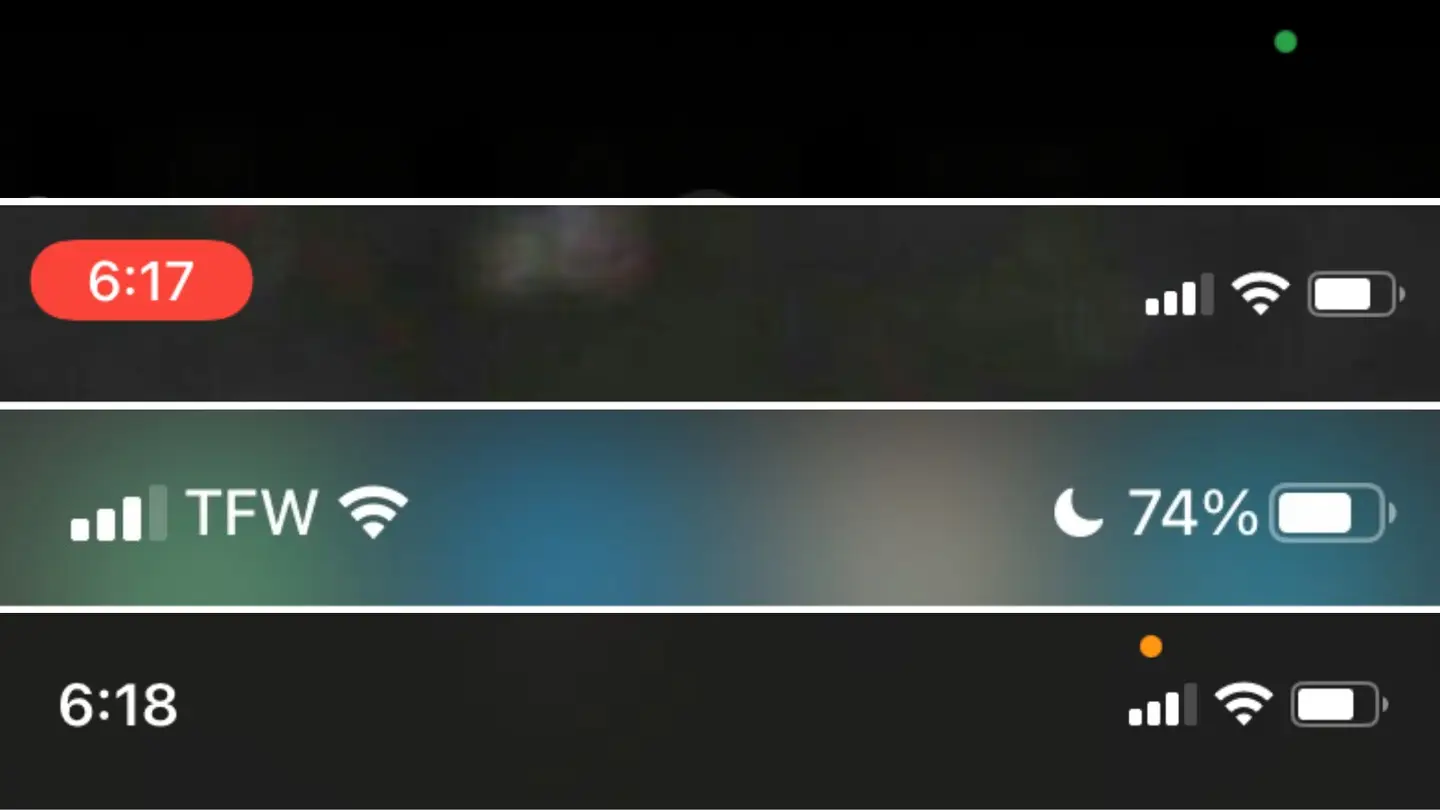
Green Dot
The green dot is a newer iPhone symbol that sparked some concern by iPhone users, but don’t worry. This green dot will appear at the top of your iPhone screen when your iPhone’s camera and/or microphone are being accessed.
Examples of when the green dot will appear:
- When using FaceTime or other third-party video chatting apps
- When taking pictures
- When scanning documents using the camera
- When using Snapchat
- When recording video
- When scanning QR codes
These are only a few examples of what might prompt the green dot.
To disable an app’s camera access:
- Open Settings.
- Click “privacy.”
- Click “camera.”
- Disable and enable any app you prefer from the list below.
Consider that these apps might need access to the camera to be fully functional.
Orange Dot
The orange dot will appear at the top of your screen when the microphone is being used. This is pretty standard behavior for many apps, and is usually harmless. If you do not want an app to have access, and want to disable it, follow the steps below. First, check out some of the apps that prompt this indicator.
Examples of when the orange dot will appear:
- When using the Voice Memo app
- When voice chatting via Snapchat, Messenger, and other third-party apps
- When calling your voicemail
- When on the phone
To disable an app’s microphone access:
- Open Settings.
- Click “privacy.”
- Click “microphone.”
- Disable and enable any app you prefer from the list below.
Consider that these apps might need access to the microphone to be fully functional.
Status Bar (blue, green, or red)
Status bars are another ambiguous symbol on iPhones that most iPhone users feel uncertain of, and understandably so. They aren’t self-explanatory and haven’t always been an iOS feature. Don’t worry, these symbols are there to let you know what your iPhone is currently up to.
Each of the three status bars you will see on your iPhone have different but similar meanings that indicate certain parts of your iPhone are being used or accessed at that moment.
Status bar meanings
- Blue status bar- The blue status bar is the more complex of the three status bars because it can indicate multiple uses. The blue status bar is most commonly associated with screen sharing because that’s when it’s generally noticed is on-screen sharing sessions with tech support. However, it can also appear when you are screen mirroring (sharing your screen to another device), or if an app is currently using your location. You will notice this appears when using the Maps app to navigate somewhere.
- Green status bar- This one is simple. If you are on a call, the green status bar will appear.
- Red status bar- The red status bar indicates that your screen and/or your microphone are being recorded. This is especially apparent when recording your own screen or using the Voice Memo app.
To find out which app is doing this, simply click the status bar, and it will either open the app or prompt you with a pop-up asking you if you want to close the app and which app it is.
It’s important to note that these bars are there to tell you what your iPhone is currently doing, not to scare you. Many third-party apps do have access to different apps, data, and features on your iPhone because permission is given when you download the app. However, you can also go to an app’s settings to alter some of them.
To change an app’s settings:
- Open Settings.
- Scroll down until you find the app.
- Disable any of the following: location services, face ID, tracking, Camera, Photos, or microphone.
Rember, some apps might need the above access to be fully functional, so depending on the app’s function, you may not want to disable all access.
Do Not Disturb
Do Not Disturb is one of my favorite iOS features since it allows me to unplug when needed, but the symbol can be confusing for those who don’t know much about DND.
This symbol can pop up next to a particular message thread in Messages if you have turned it on for that person. It can also appear at the top of your screen if DND is on at that moment. This is important to know, especially if you noticed you haven’t been hearing your calls or notification and aren’t sure why.
Location Services
Location services is a big one, but don’t worry. This little symbol will tell you when your location is being accessed, so that you can disable that access if you would like, though it is completely normal for some apps to access your location services.
Apps that use location services:
- Uber
- Lyft
- Pokémon Go
- Uber Eats
- DoorDash
- Google Maps
- Maps
- Weather (and other weather apps)
- Road Trippers
- Compass
- Google (when searching for restaurants, etc. near you)
How to disable location services:
- Open Settings.
- Click “privacy.”
- Click “location services.”
- Disable and enable any app you prefer from the list below.
Some of these apps may need access to location services to provide accurate information.
Orientation Lock
If you bring up, or down depending on your iPhone model, you will see the orientation lock symbol there. If it is on, that is when the symbol will appear at the top of the screen. This can be turned on and off in the command center.
Its purpose is to stop your screen from orienting every time you move. For example, if you are reading in bed, you may notice the screen flips if you put it at too much of an angle, and this feature will prevent that so that you can turn the phone without the screen flipping each time you do.
Syncing to iTunes
This is a good one to be aware of, especially if you plug your iPhone into a computer that isn’t yours and you are syncing to a computer at home. This symbol shows up when your iPhone is syncing to a computer via iTunes.
A Full List
Here is a full, simple list of the symbols on your iPhone as referenced from support.apple.com. These may change over time and with different iOS versions. So, make sure you are up to date before viewing this list.
If your iPhone has plateaued and cannot update to the most recent version, you may just notice some of these symbols don’t apply to your iPhone.