
Stop Chrome From Automatically Redirecting Https
Open HSTS settings in net-internals in Chrome
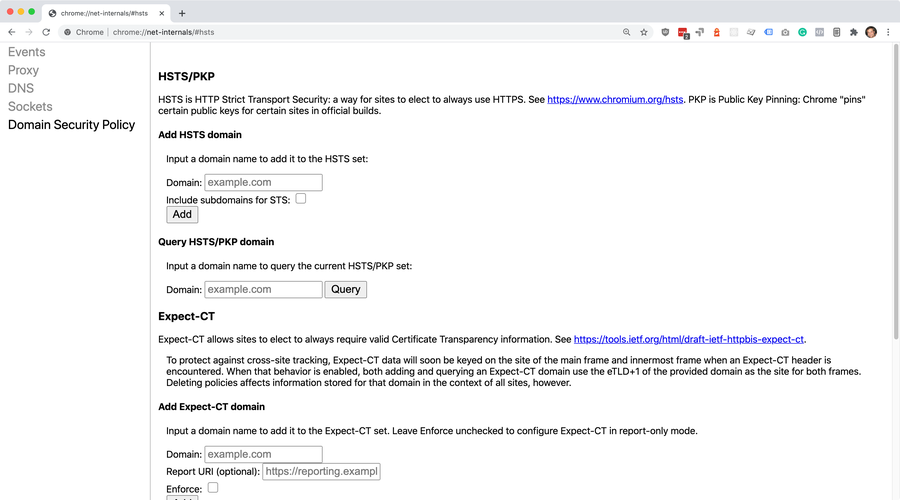
In a new browser tab, go to chrome://net-internals/#hsts. This is the configuration area for HSTS.
What is HSTS?
According to Google Chrome, an HSTS is HTTP Strict Transport Security—a way for sites to elect to always use HTTPS.
Delete domain security policies for the domain
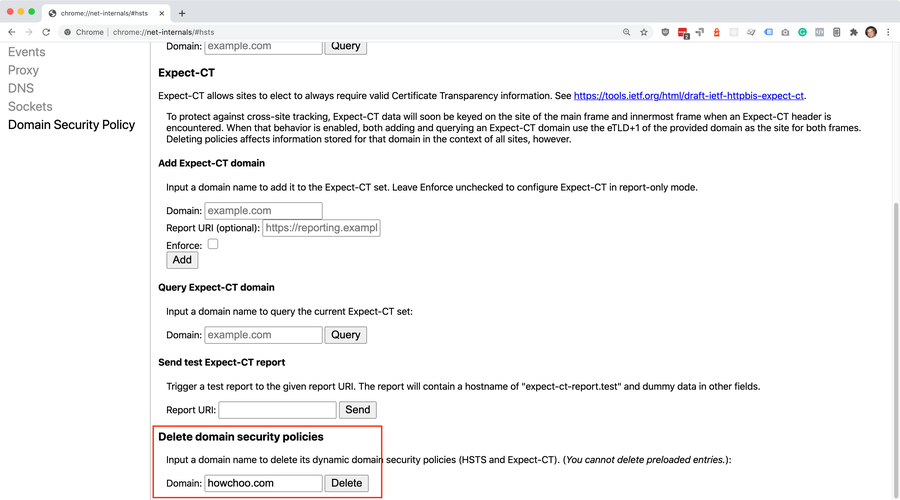
Scroll down to “Delete domain security policies” and enter the root domain that’s causing you issues. For example, I entered howchoo.com to prevent the domain from automatically redirecting to https.
Then, click the Delete button.
Visit the website to test
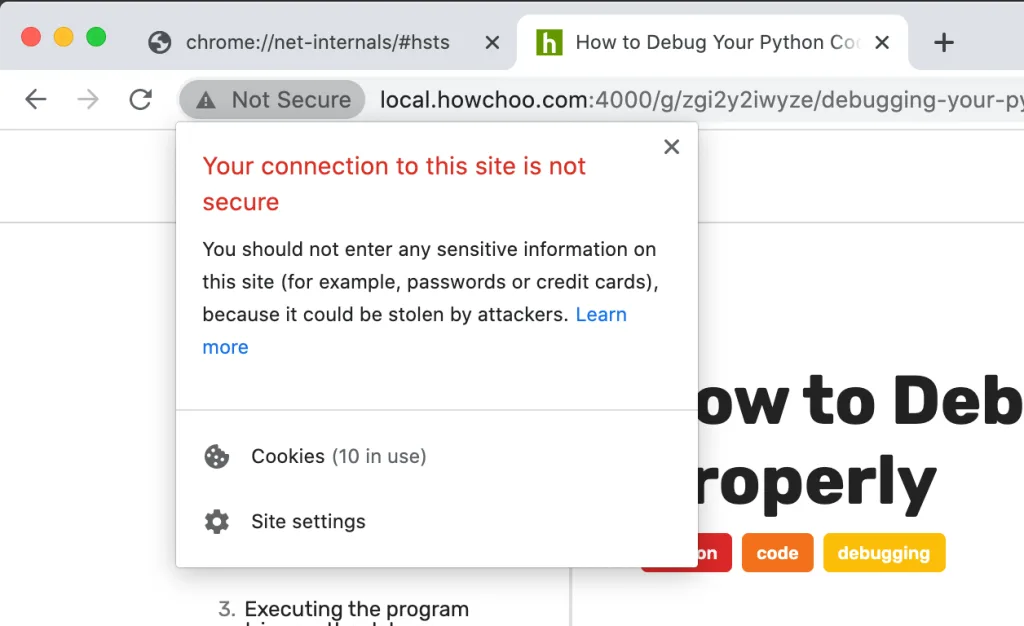
Visit the http version of the URL that was giving you problems. You should no longer get redirected.
Still getting redirected?
If you’re still getting redirected, try clearing your browser cache by navigating to Chrome > Settings > Privacy and security (or by visiting chrome://settings/privacy in your browser) and clear your browsing data.
How to Clear Your Browser Cache for Any Browser
Trouble loading web pages? Try clearing your cache!
You can also clear data just for the specific domain by visiting the domain in your browser by navigating to View > Developer > Developer Tools > Application > Clear storage and then clicking the Clear site data button.