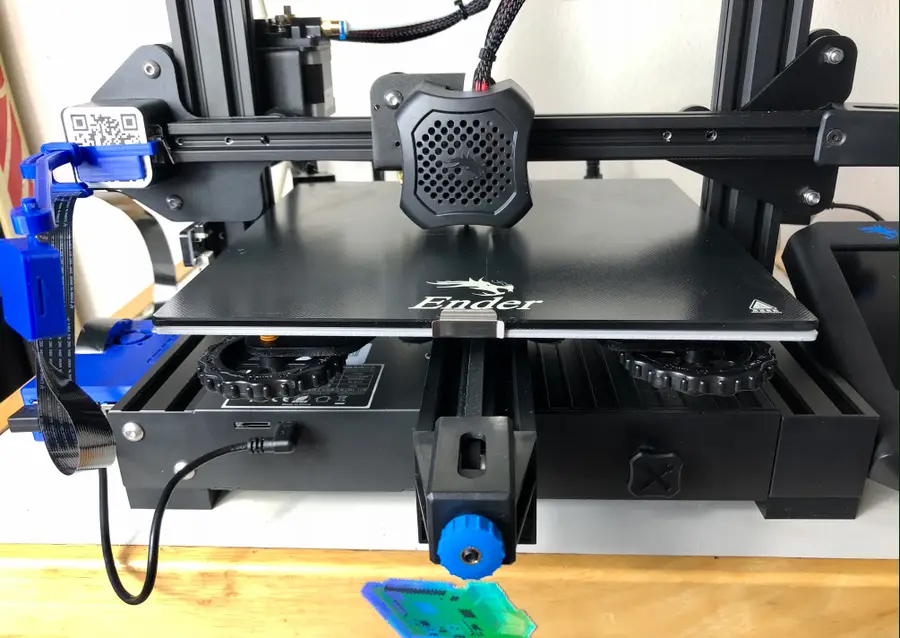
Level Bed Ender 3 V2
Lower the bed slightly
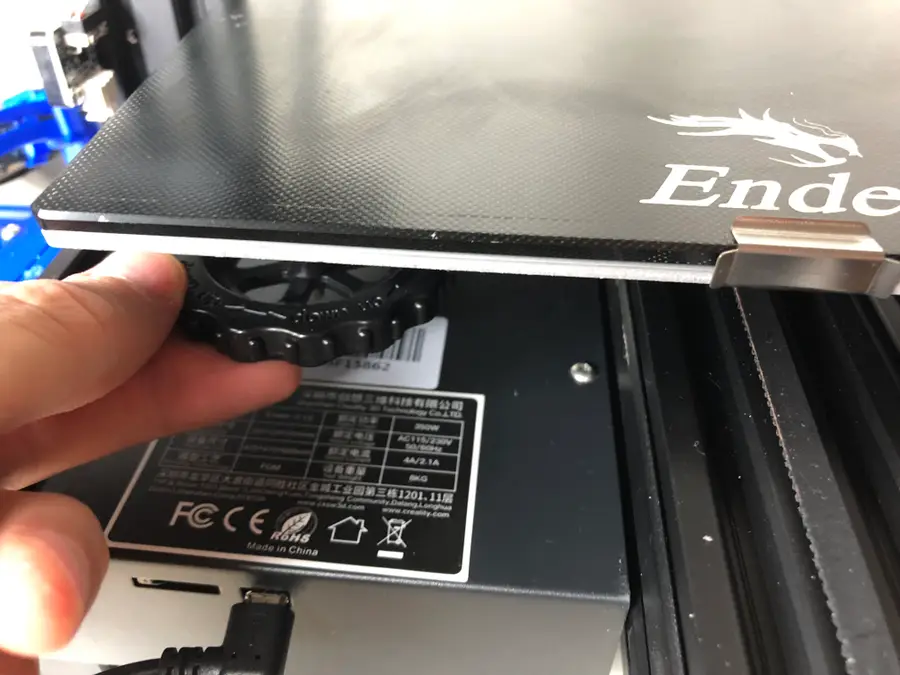
Turn the bed adjustment wheel counter-clockwise a few times or until you’re sure that the nozzle will not hit the surface as it lowers.
Run “Auto home”
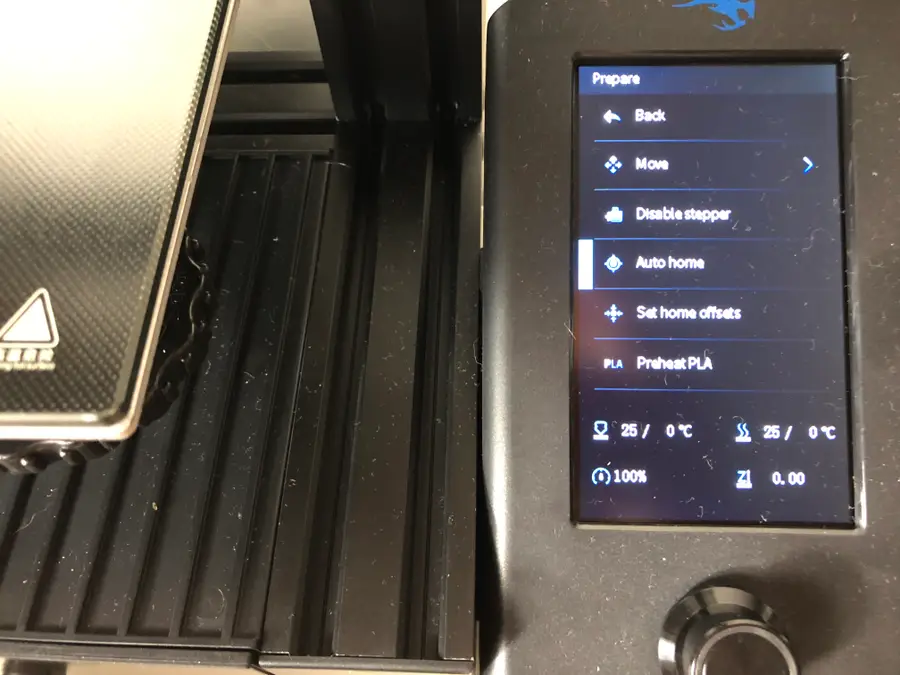
On your Ender 3 V2 screen, go to Prepare > Auto home.
This will run an automatic program that will move the print bed until the nozzle aligns with the left corner.
Disable stepper
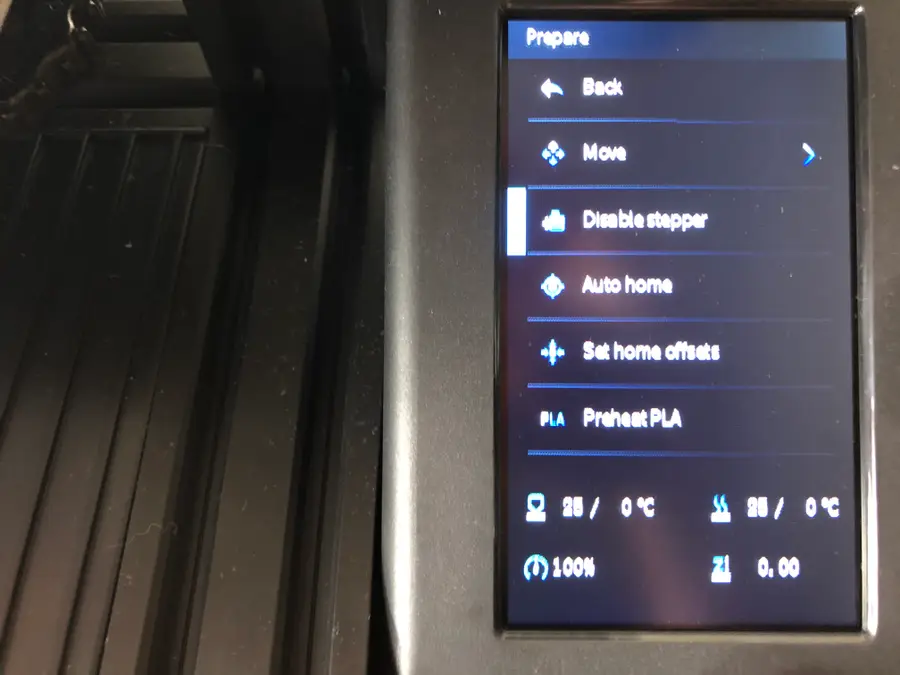
On your Ender 3 V2 screen, select Disable stepper.
This will allow you to move the print bed freely while you level it.
Use sheet of paper to find the right level
This is the trickiest part of bed leveling and certainly one that you’ll get better at with practice.
- Slide a sheet of paper between the printing nozzle and the print bed.
- Simultaneously raise the print bed toward the nozzle by rotating the wheel clockwise, while sliding the sheet of paper back and forth.
- When you feel the slightest tension on the paper, stop. It feels almost like the paper is vibrating.
Repeat this process two times around, on each corner of the print bed, moving to the bottom-right, top-right, and top-left.
You’ll need to move the print bed to get the nozzle on the different corners of the printing surface. Make sure you’re not scratching the surface with the nozzle as you move the print bed.
Next: Upgrade those springs
Now, if you haven’t already, you’ll want to upgrade the springs on your Ender 3 V2, so you don’t have to level the bed endlessly!
Ender 3 V2 Bed Spring Upgrade: A Necessary Mod for the V2
Choosing and installing new bed springs on the Ender 3 V2.
How did it go?
Did you manage to level the bed on your Ender 3 V2? Any suggestions or tips for others looking to level their beds? We’d love to hear more suggestions!
Troubleshooting tip: Z-offset
Many people are running into an issue with an improperly aligned Z-offset. This means that your extruder sits too close or too far away from the print bed when trying to level it.
We have a guide that shows you how to easily adjust the Z-offset on the Ender 3, Ender 3 V2, and Ender 3 Pro 3D printers to fix this issue!
How to Correct the Z-Offset on Your Ender 3, Ender 3 V2 and Ender 3 Pro
You’ll need to manually adjust the Z-offset to get this right.