Find Duplicates Google Sheets
1
Find duplicates in a column
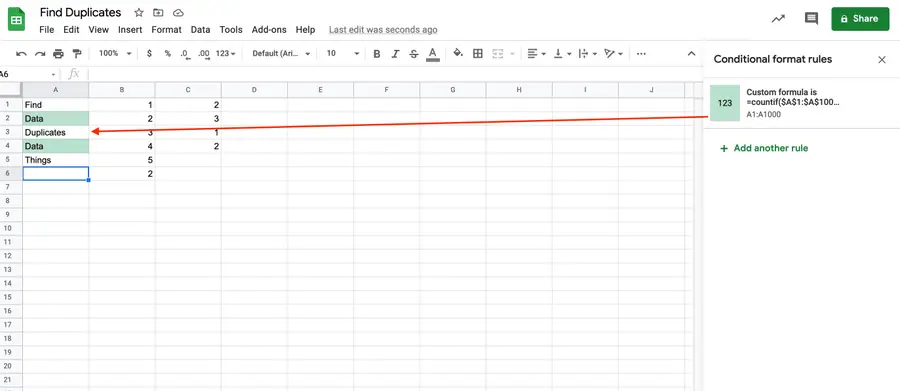
To find duplicate data in a column of a Google Sheet:
- Highlight the column by clicking on the corresponding letter above it.
- Go to Format.
- Select Conditional formatting.
- Under “Format rules,” select Custom formula is….
- Input a version of the following formula, depending on the letter of the column you’ve highlighted. (In this formula, we selected column A.) You’ll need to change the letter if you’re using a different column.
=countif($A$1:$A$1000,A1)>1- Click Done.
You may also need to change the formula if your column starts at a different value.
2
Find duplicates in a row
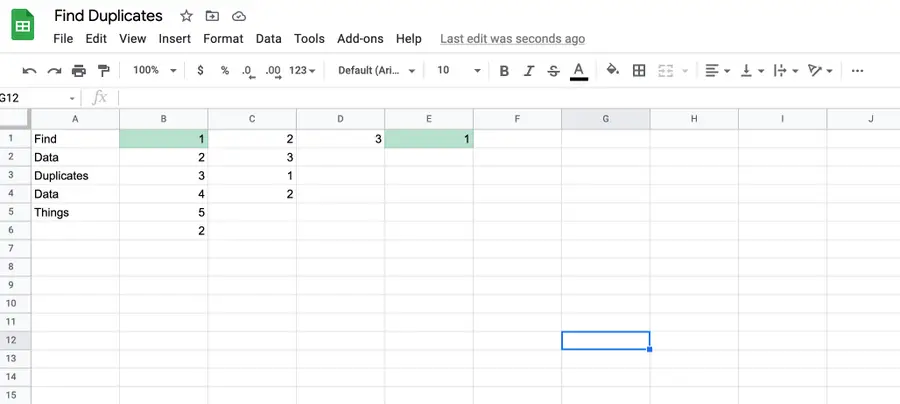
To find duplicate data in a row of a Google Sheet:
- Highlight the row by clicking on the corresponding number next to it.
- Go to Format.
- Select Conditional formatting.
- Under “Format rules,” select Custom formula is….
- Input a version of the following formula, depending on the row you’ve highlighted. (In this formula, we selected row 1.) You’ll need to change both numbers that follow the letters if you’re using a different column.
=countif($A$1:$Z1,A1)>1- Click Done.
In the above, if you want to search row 2, for example, then your formula would be =countif($A$2:$Z2,A2)>1.
3
Removing duplicates in Google Sheets
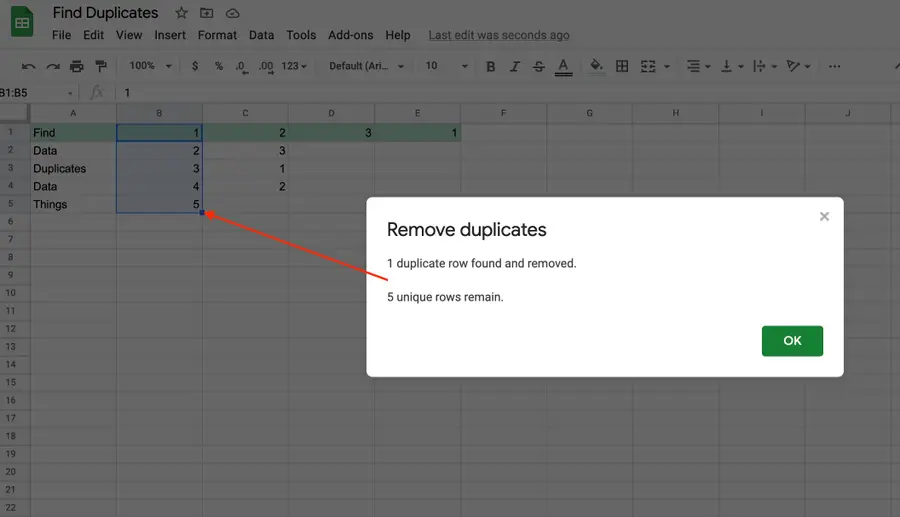
If all you need to do is remove duplicates from a column or row, then it’s even easier than finding and highlighting them.
- Highlight the row or column.
- Go to Data.
- Select Remove duplicates.
- Make sure that you’re selecting the right column(s) or row(s).
- Click Remove duplicates.
You’ll be shown how many duplicates are removed. By default, duplicates are removed in Google Sheets, leaving the first instance of the data.
- Click OK.