What The Symbols On Your Apple Iphone Mean
What The Symbols On Your Apple Iphone Mean
iPhone symbols demystified!
Over the years, as iOS versions improve and advance, the symbols and status indicators on our iPhones have changed too. Oftentimes, this creates confusion, curiosity, and even stress surrounding particular symbols, especially those that indicate the use of microphones and other privacy concerns.
This is totally understandable, and it’s another reason why knowledge is power. First off, I was to make sure you know that these symbols and status indicators are here for your benefit and to assist you and only you. They are there to let you know what is being used or accessed on your iPhone, as well as to alert you that certain apps may be accessing certain information.
Secondly, also know that when you are downloading third-party applications you are often giving that app access to your microphone, data, or camera. Luckily, this is nothing to fear, because Apple has recently included a feature that allows to disable or enable access to certain privacy concerning parts of your data or iPhone. Also, you can always alter what apps you have and don’t have access to.
To take it one further, also consider that some of these accesses are completely normal. For example, a third-party messaging and calling application might need access to your mic to allow you to make calls, or a photo editing app might need access to your photos to edit them. Regardless, it’s important to know what the symbols mean on your iPhone, especially the more ambiguous ones so that you can make the necessary changes.
In this guide, I will cover some of the most asked about iPhone symbols meanings and indications, I will provide steps on how to see a third-party app’s access and alter that access, and I will also provide a full list of all iPhone symbols and what they represent.
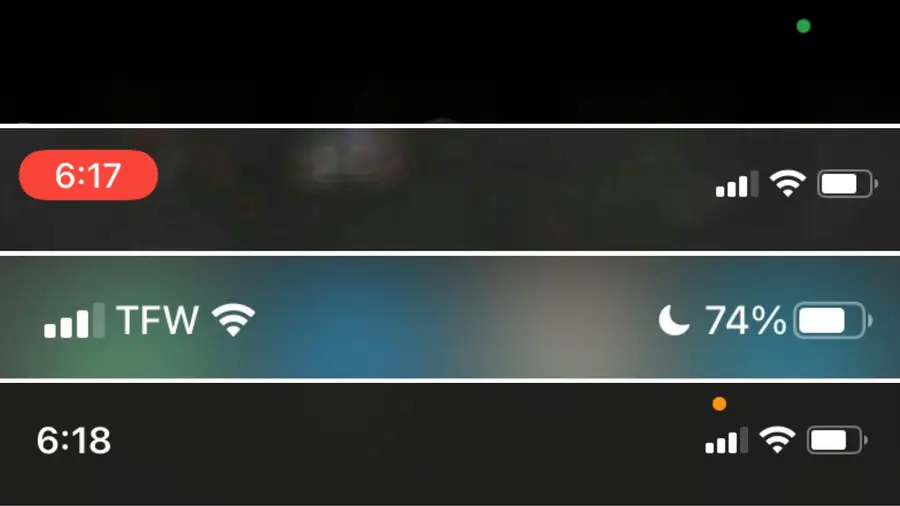
The green dot is a newer iPhone symbol that sparked some concern by iPhone users, but don’t worry. This green dot will appear at the top of your iPhone screen when your iPhone’s camera and/or microphone are being accessed.
Examples of when the green dot will appear:
1. When using FaceTime or other third-party video chatting apps
2. When taking pictures
3. When scanning documents using the camera
4. When using Snapchat
5. When recording video
6. When scanning QR codes
These are only a few examples of what might prompt the green dot.
To disable an app’s camera access:
1. Open Settings.
2. Click “privacy.”
3. Click “camera.”
4. Disable and enable any app you prefer from the list below.
Consider that these apps might need access to the camera to be fully functional.
The orange dot will appear at the top of your screen when the microphone is being used. This is pretty standard behavior for many apps, and is usually harmless. If you do not want an app to have access, and want to disable it, follow the steps below. First, check out some of the apps that prompt this indicator.
Examples of when the orange dot will appear:
1. When using the Voice Memo app
2. When voice chatting via Snapchat, Messenger, and other third-party apps
3. When calling your voicemail
4. When on the phone
To disable an app’s microphone access:
1. Open Settings.
2. Click “privacy.”
3. Click “microphone.”
4. Disable and enable any app you prefer from the list below.
Consider that these apps might need access to the microphone to be fully functional.
Status bars are another ambiguous symbol on iPhones that most iPhone users feel uncertain of, and understandably so. They aren’t self-explanatory and haven’t always been an iOS feature. Don’t worry, these symbols are there to let you know what your iPhone is currently up to.
Each of the three status bars you will see on your iPhone have different but similar meanings that indicate certain parts of your iPhone are being used or accessed at that moment.
1. Blue status bar- The blue status bar is the more complex of the three status bars because it can indicate multiple uses. The blue status bar is most commonly associated with screen sharing because that’s when it’s generally noticed is on-screen sharing sessions with tech support. However, it can also appear when you are screen mirroring (sharing your screen to another device), or if an app is currently using your location. You will notice this appears when using the Maps app to navigate somewhere.
2. Green status bar- This one is simple. If you are on a call, the green status bar will appear.
3. Red status bar- The red status bar indicates that your screen and/or your microphone are being recorded. This is especially apparent when recording your own screen or using the Voice Memo app.
To find out which app is doing this, simply click the status bar, and it will either open the app or prompt you with a pop-up asking you if you want to close the app and which app it is.
It’s important to note that these bars are there to tell you what your iPhone is currently doing, not to scare you. Many third-party apps do have access to different apps, data, and features on your iPhone because permission is given when you download the app. However, you can also go to an app’s settings to alter some of them.