How To Update Blender
1
Check your Blender version
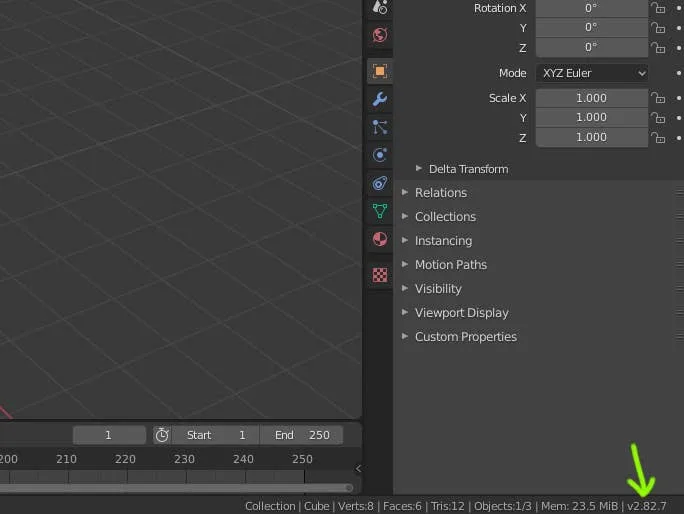
- Launch Blender.
- Look for the version number in the splash screen pop-up.
- If the splash screen is closed, look in the bottom right-hand corner for the version number. It should appear next to the letter v. For example,
v2.82.7.
2
Manually update Blender
- Uninstall Blender from your computer.
- Download the latest version of Blender from the Blender website.
- Run the installer.
- Reboot and launch Blender to make sure the version installed is the one you wanted.
3