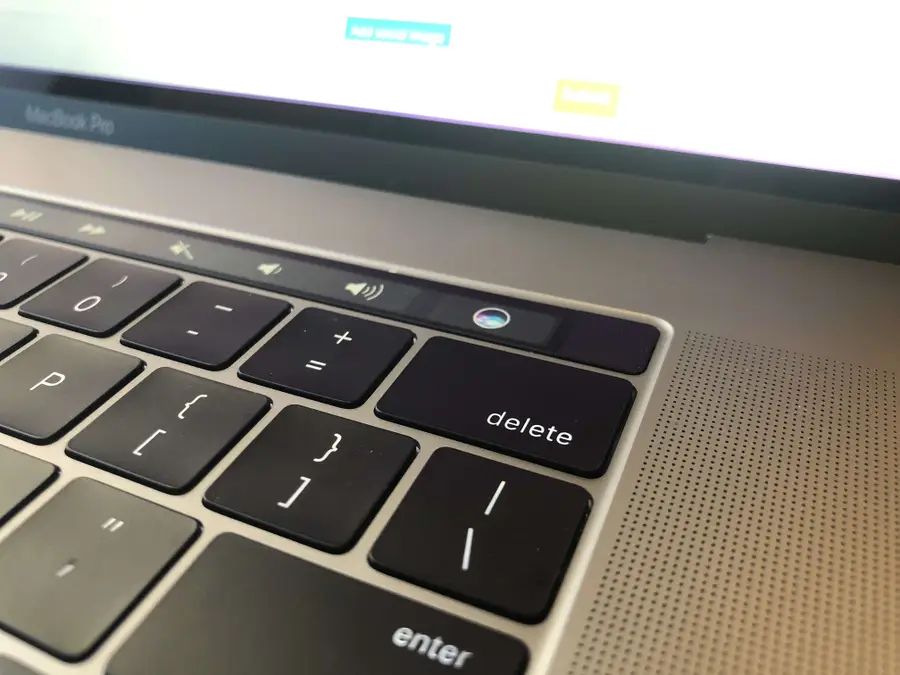
How To Remove Siri From The Touch Bar On The Macbook Pro
1
Open System Preferences
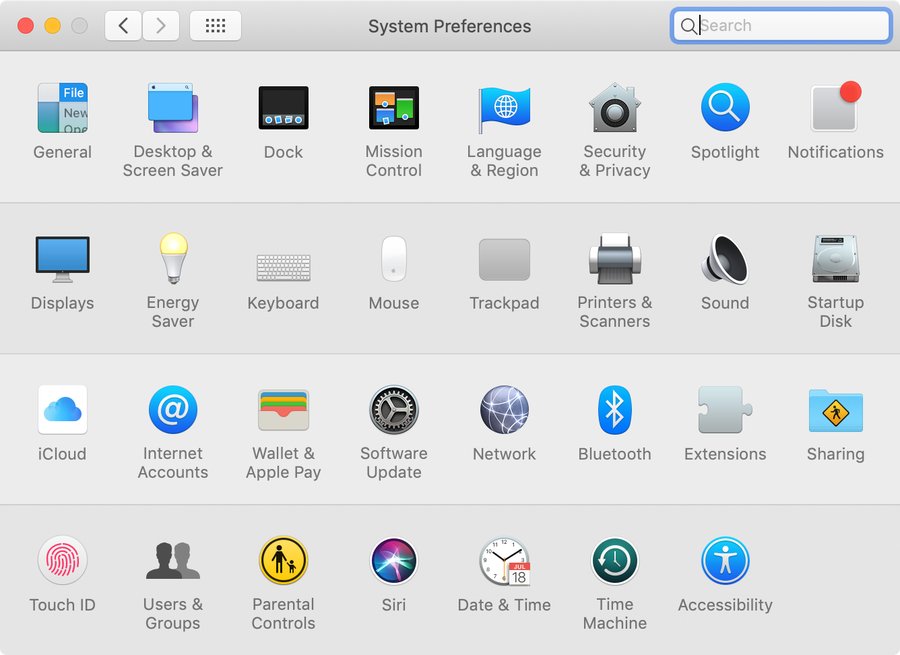
Click on the Apple icon and select System Preferences.
2
Open Keyboard Settings
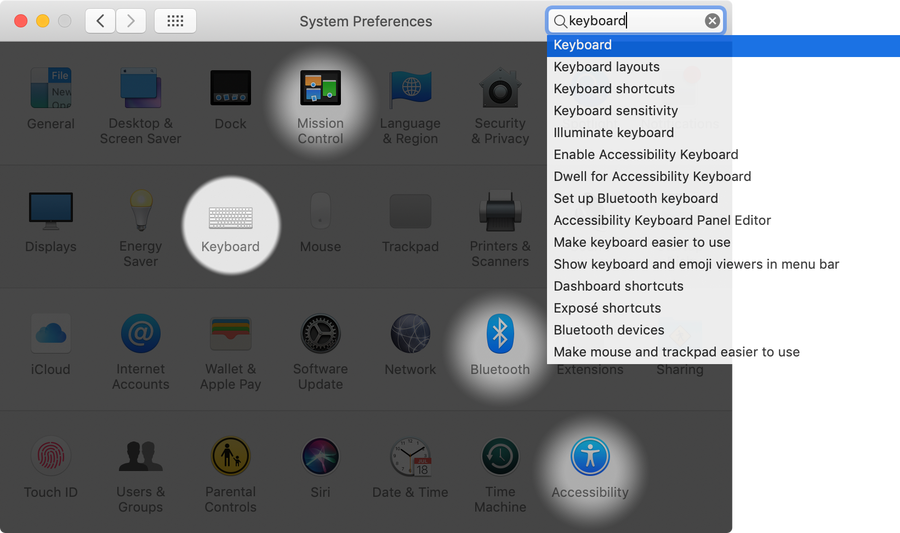
Click the Keyboard system preference icon.
3
Customize the Touch Bar
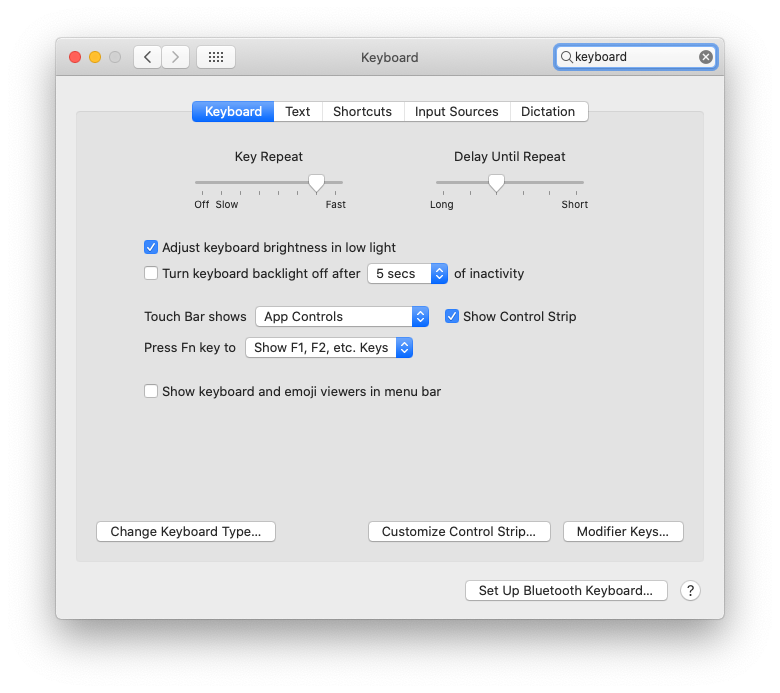
Click the Customize Control Strip... button.
4
Remove or replace the Touch Bar Siri button
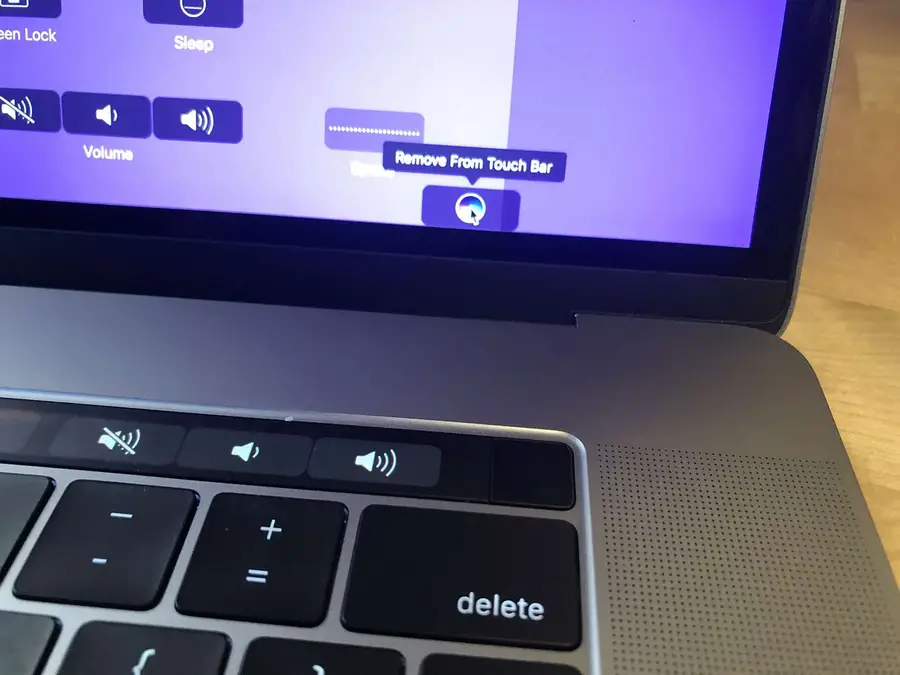
Move your mouse down, off your screen and INTO the touch bar. This will highlight each menu item. Highlight the Siri button, click, and drag the Siri button upward and out of the Touch Bar. It will now disappear.
You can optionally add a new button to replace the Siri button, but I chose to leave it empty because I inadvertently click in the space all the time.
5
You’re all done!
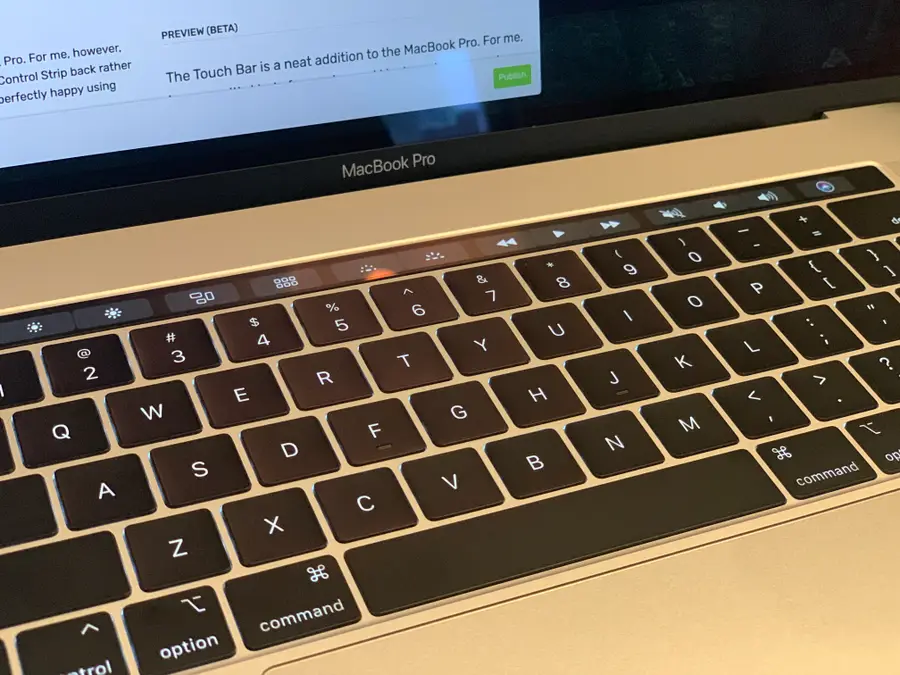
You go to hell Siri and you die there. Now that you’ve disabled Siri, perhaps you’d like to disable the MacBook Pro Touch Bar and revert it to its former Control Strip glory!
How to Disable the MacBook Pro Touch Bar