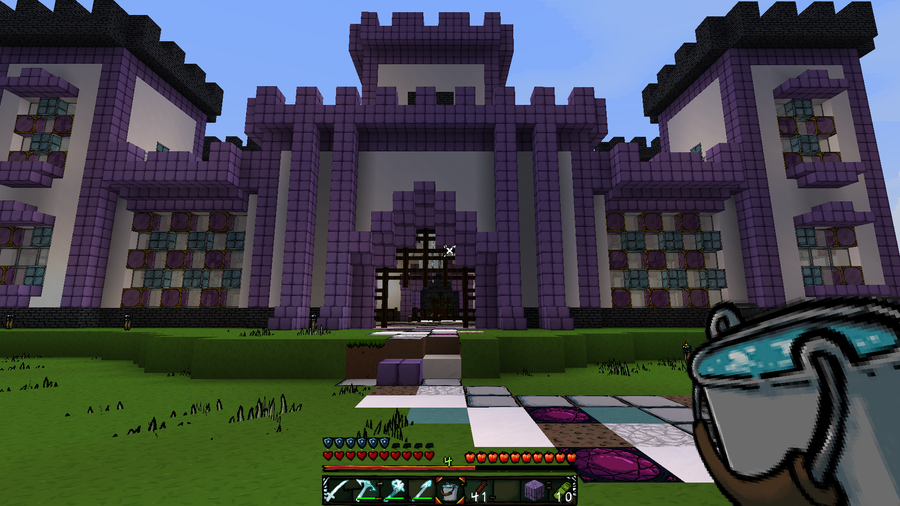
Install Resource Pack Minecraft Launcher
Find your file path
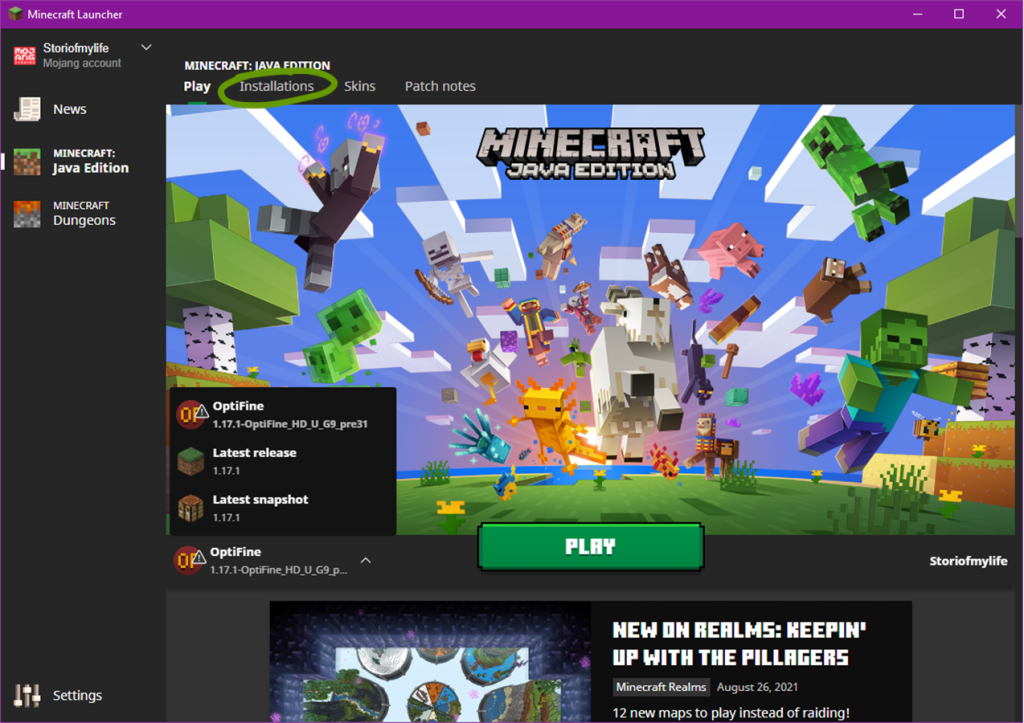
Before moving into the actual installation of resource or texture packs, it’s important to know where your Minecraft game is installed. To do so, follow these steps:
1. Open the Minecraft Launcher.
2. Make sure the launch option is the game version you plan on using.
3. Go to the Installations tab at the top of the window.
4. Hover your mouse over the game version you want to find and click the folder icon to the right of the Play button. See the image above for help.
5 . Locate the resource pack folder. This is where you’ll place any resource pack you want to use.
Choose a resource or texture pack
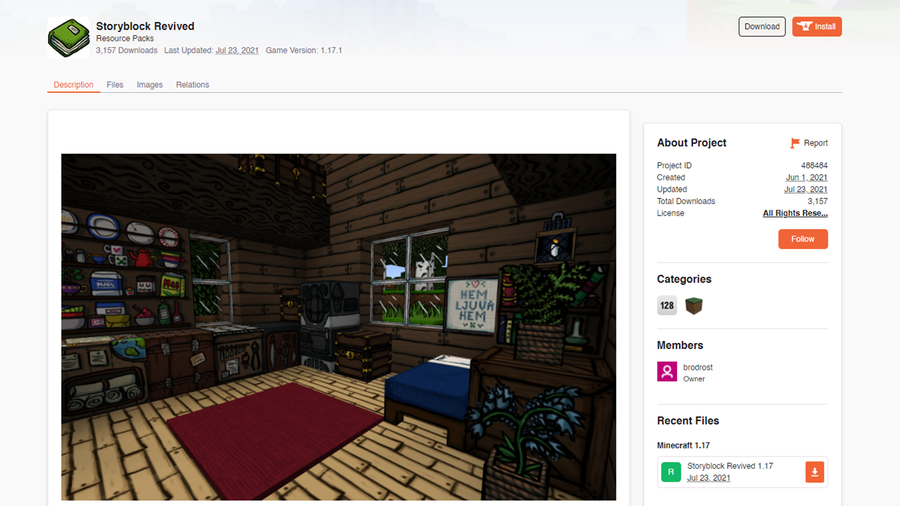
Many websites are available to download resource packs, but some are safer than most. We recommend CurseForge or ResourcePack.net. Alternatively, you can download directly from a developer’s website as well!
Make sure it’s compatible with your Minecraft game version and then move on to the next step!
Download the pack
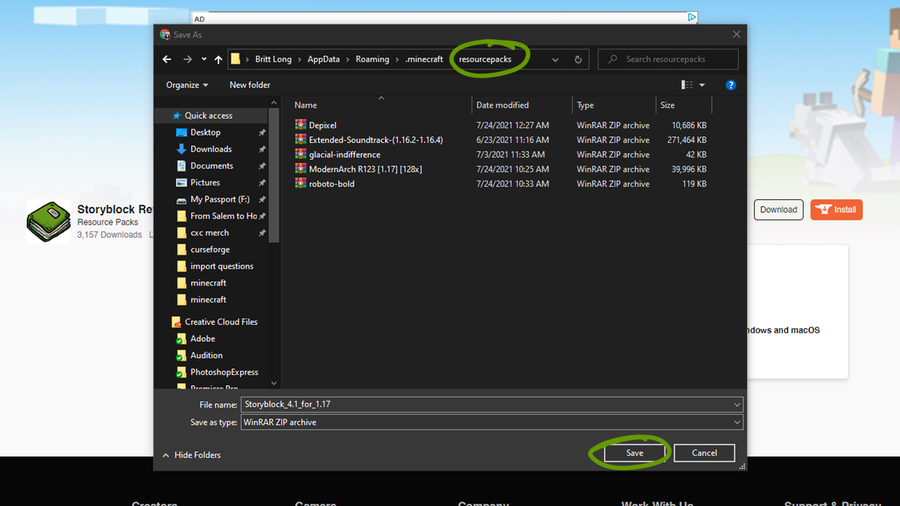
Download the correct game version of the resource pack you’ve chosen and place it within the Resourcepack folder found in Step 1. Make sure you don’t unzip the downloaded file!
Activate the resource pack
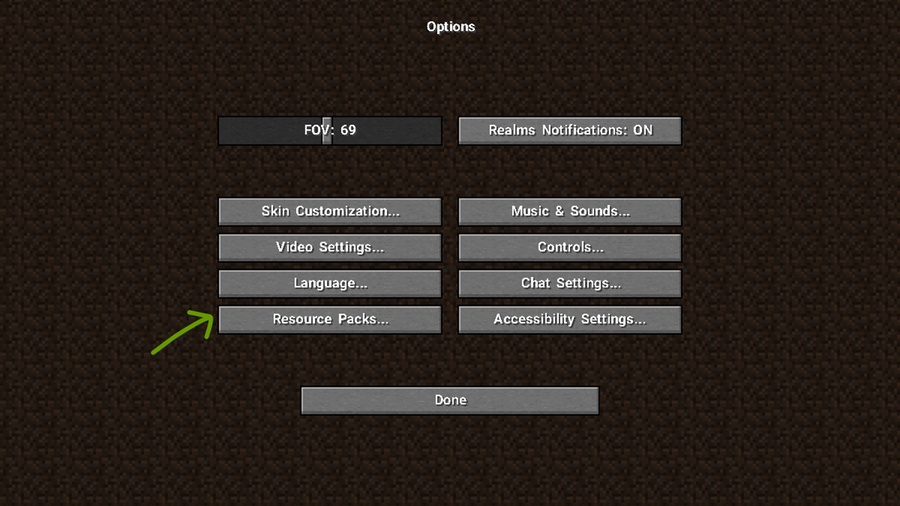
Now it’s time to run Minecraft and turn on your resource pack! Once the game has launched, follow these steps:
1. Click Options then Resource Packs.
2. Click arrow button that appears over the resource pack’s icon to move it to the right Selected column, as shown in the image below.
3. Click Done and a loading screen will appear and return you back to the Options menu when it’s finished rendering.
Return back to the main menu and you can start playing Minecraft with a brand new theme! To learn how to install shaders, read our guide to installing shader packs for Minecraft!