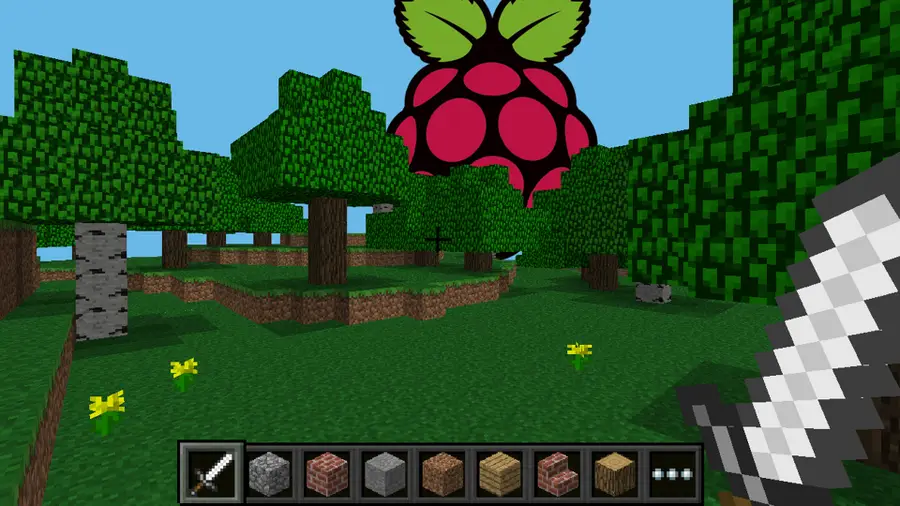
Minecraft Raspberry Pi
Install and update Raspberry Pi OS
Minecraft Pi Edition runs on top of Raspberry Pi OS (formerly Raspbian). It was designed for Wheezy, but I had no issues running it with Buster. Newer versions of Raspberry Pi OS sometimes include Minecraft. Check under the Main Menu > Games folder to see if it’s already installed.
Make sure your OS is up to date before moving forward. Visit our guide for more details on how to update Raspberry Pi OS.
How to Install Raspberry Pi OS on Your Raspberry Pi
Get the new official Raspberry Pi OS on your Pi.
Download Minecraft for Raspberry Pi
Minecraft Pi Edition can be downloaded from the terminal. Make sure your Pi has a connection to the internet before completing this step.
Open a terminal window and run the following command:
sudo apt install -y minecraft-piMinecraft Pi Edition will download and install to the Raspberry Pi.
Launch the game
When the game is finished installing, restart the Raspberry Pi.
When the Pi is finished booting, try launching the game. You can find the executable under the Main Menu > Games > Minecraft Pi.
The game will launch in a new window.
Start a new world
Starting a new world is easy. On the main menu in Minecraft Pi Edition, click Start game and then Create new. The game will automatically generate a new world. It’s a basic 256 × 256 × 128 block world, very similar to Minecraft Pocket Edition.
Join a game
To join a local game with another Minecraft Pi Edition user, click Join Game on the main screen. You can then choose from a list of available worlds.
Saving a game
Games are saved automatically. You can sort through your list of worlds on the Select world screen using the A and D keys.
Congratulations! You’re running Minecraft on a Raspberry Pi.