How To Enable Ssh On Raspbian Without A Screen
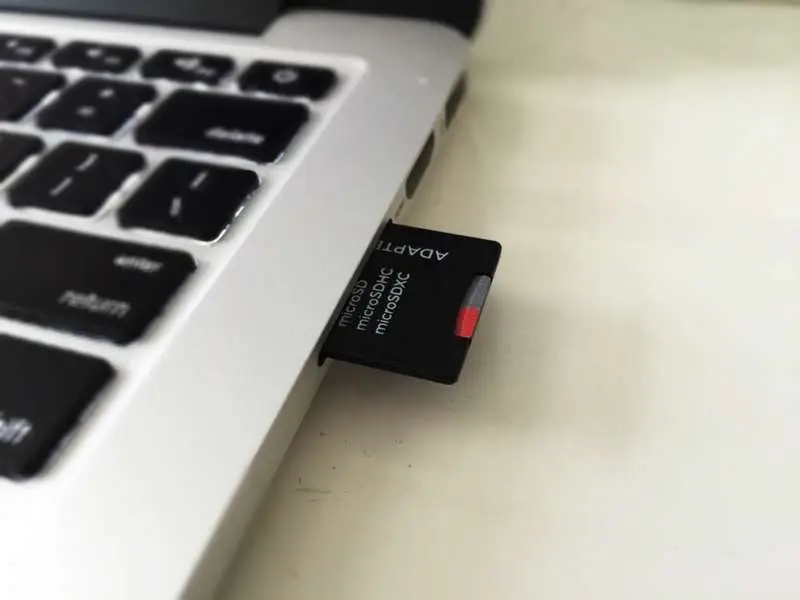
Put the micro SD card into your computer
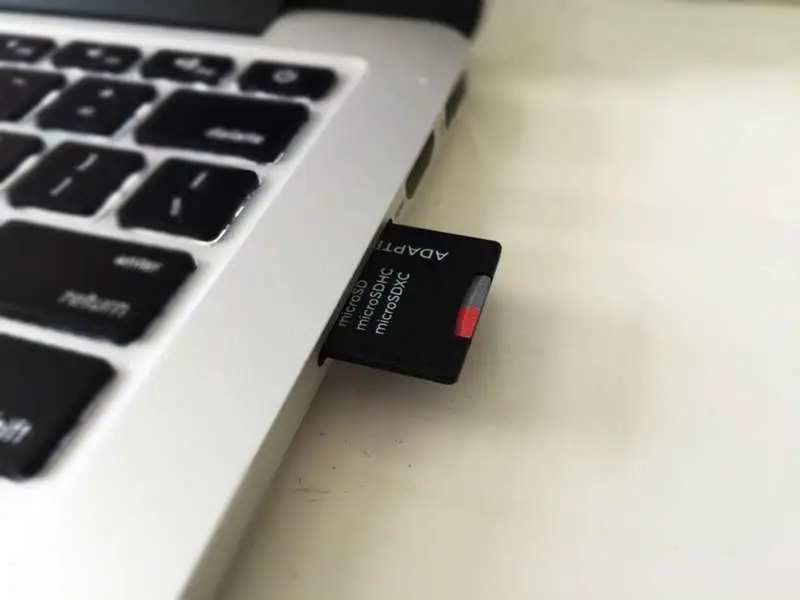
This guide assumes that you’ve already installed Raspberry Pi OS on your Pi. If not, go ahead and install it. Then put the SD card into your computer.
How to Install Raspberry Pi OS on Your Raspberry Pi
Get the new official Raspberry Pi OS on your Pi.
Navigate to the boot directory
You’ll have to locate the boot directory, on my Mac it’s in /Volumes/boot.
If you’re on a Mac, open Terminal (Applications > Utilities > Terminal) and type:
cd /Volumes/bootOn Windows, you’ll need to use Command Prompt instead.
Create an empty file called ssh
All you have to do is create an empty file called ssh.
touch sshIf this file exists, ssh will be enabled when the pi is booted.
Insert the SD card into the Pi and power on
Connect the Pi to a power source to power it on. As long as the Pi is connected via an Ethernet cable (or wifi), you should now be able to ssh in to the Pi.
How to Connect to a Raspberry Pi Remotely via SSH
The preferred (and most common) method of connecting to your Pi to run commands.
If you don’t have easy access to an ethernet connection, you can configure a WiFi connection similar to how we enabled SSH.
How to Set up WiFi on Your Raspberry Pi Without a Monitor (Headless)
No monitor, keyboard, or mouse? No problem.