How To Transfer Files To The Raspberry Pi
Transfer files to the Raspberry Pi using SCP
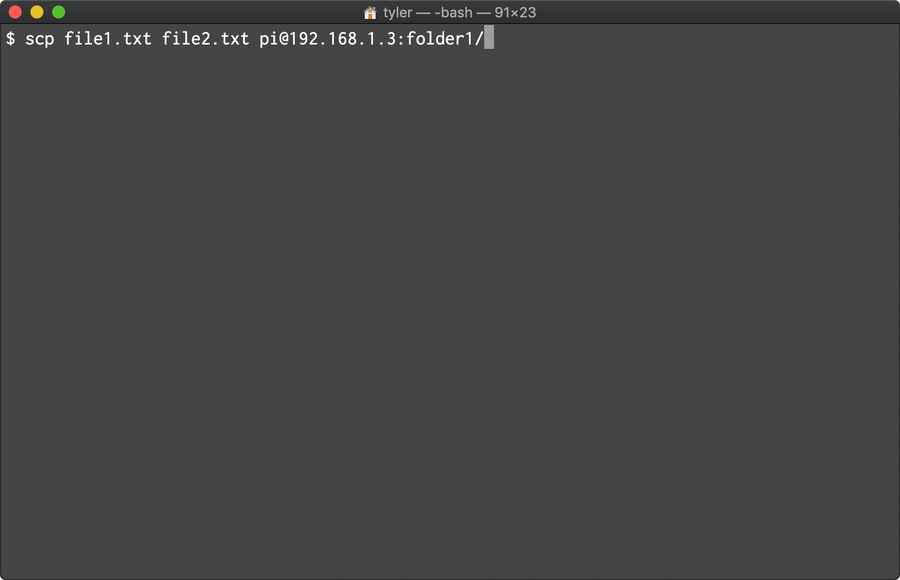
The fastest way to copy files to your Raspberry Pi is with SCP, which stands for “secure copy”. This method might be difficult at first for newer users, but it eliminates the overhead of a GUI application and is both fast and secure.
Enable SSH
Because SCP is based on the SSH protocol, you’ll need to enable SSH on your Pi before you can use this method.
How to Enable SSH on Raspberry Pi OS Without a Screen
The SSH protocol is disabled by default.
Find your Pi’s IP
Next you’ll need to find the IP Address of your Raspberry Pi.
How to Find Your Raspberry Pi’s IP Address
Copy files with the SCP command
The SCP command is constructed as follows:
scp [source files] [user]@[host]:[path]Note: The path can be relative or absolute. If relative, the path is relative to the user’s home directory.
Here’s an example:
scp file1.txt file2.txt [email protected]:folder1/This command will ask you for the password for the pi user, which by default is raspberry.
In this example file1.txt and file2.txt are transferred to folder1 in your home directory: /home/pi/folder1. You can also specify an absolute path, like this:
scp file1.txt file2.txt [email protected]:/code/This will move the files to /code in the root directory of your Pi, assuming you have the correct permissions to access this directory.
Transfer files to the Raspberry Pi using SFTP
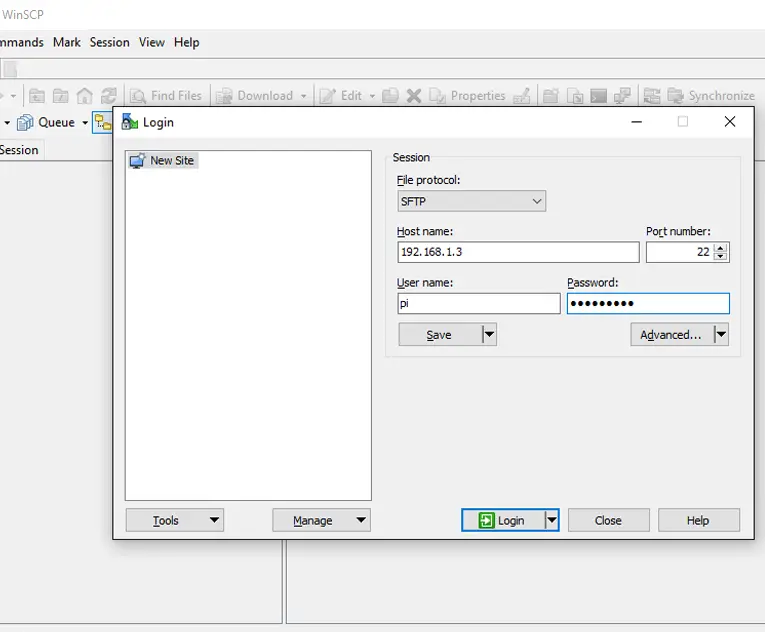
SFTP is even easier to use than SCP. Once you establish an SFTP connection with your Pi, you can drag and drop files with the click of a button.
To log into the Raspberry Pi via SFTP, first grab the IP Address of your Raspberry Pi. Then open your SFTP client (see below), and use your IP address with the default credentials:
How to Find Your Raspberry Pi’s IP Address
username: pi
password: raspberry
SFTP client for Windows 10
Windows users can use WinSCP for SFTP file transfers. This program is recommended by the Raspberry Pi Foundation.
SFTP client for macOS
Cyberduck is one of the best SFTP options for Mac users.
Transfer files to the Raspberry Pi over Network using Samba
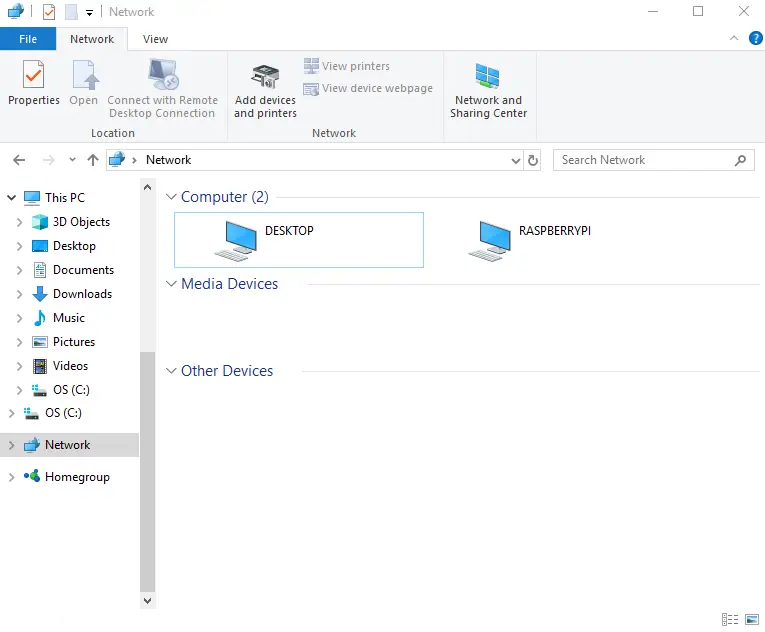
Samba makes it easy to access the Pi via shared network devices. This can be easier to manage than logging into the Pi for every file transfer.
Raspberry Pi OS does not come with Samba by default. However, it’s very easy to set up. The Rasberry Pi Foundation provides detailed instructions on how to install and set up Samba.
With network sharing enabled, you can access the Raspberry Pi by clicking on it from your list of available network devices. This makes it easy to move files over in a pinch.