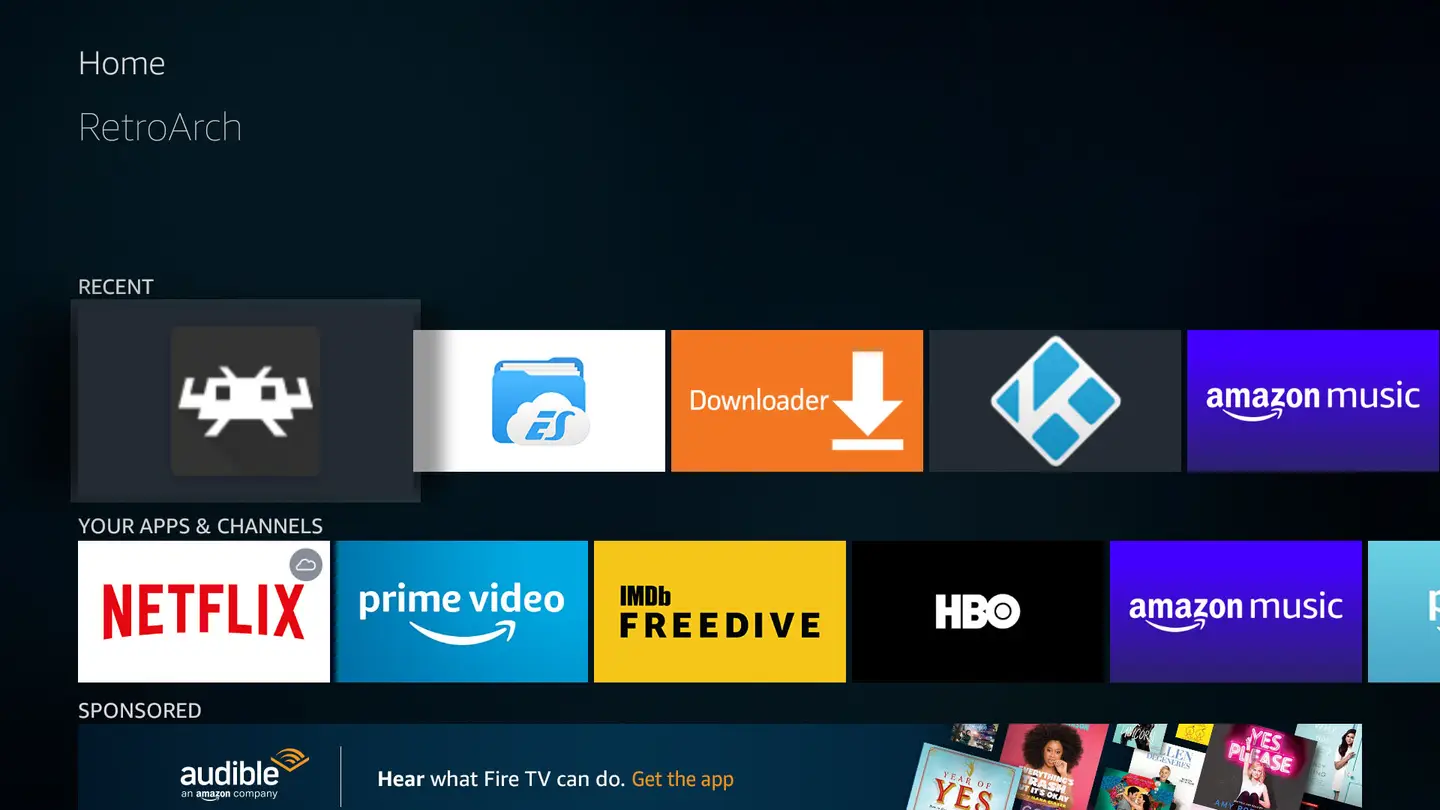
Amazon Fire Tv Stick Retroarch
Enable Apps from Unknown Sources
First, we need to tell the Fire Stick that it’s okay to install third-party apps. Open Settings and choose Device. New editions will say My Fire TV instead of Device.
Open Developer Options and choose the option to enable Apps from Unknown Sources.
Note: Be cautious when installing third-party apps. RetroArch is safe, but other apps should be verified for safety before you install them.
Install the Downloader app
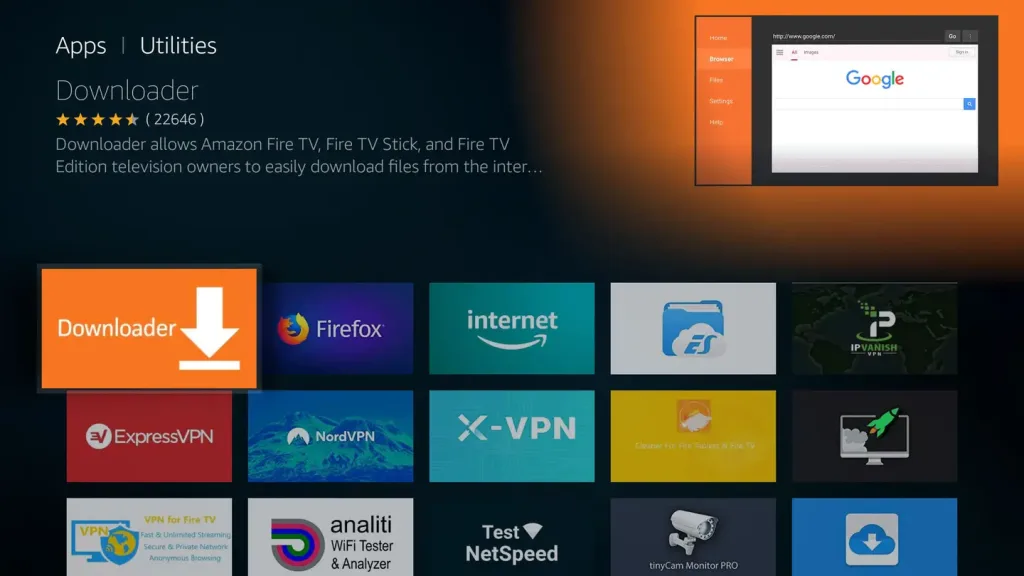
Next, we’ll need an app called Downloader. This will help us download and install RetroArch. Thankfully, it’s available on the Amazon AppStore.
You can find it under the Utilities category.
Download and install the RetroArch app
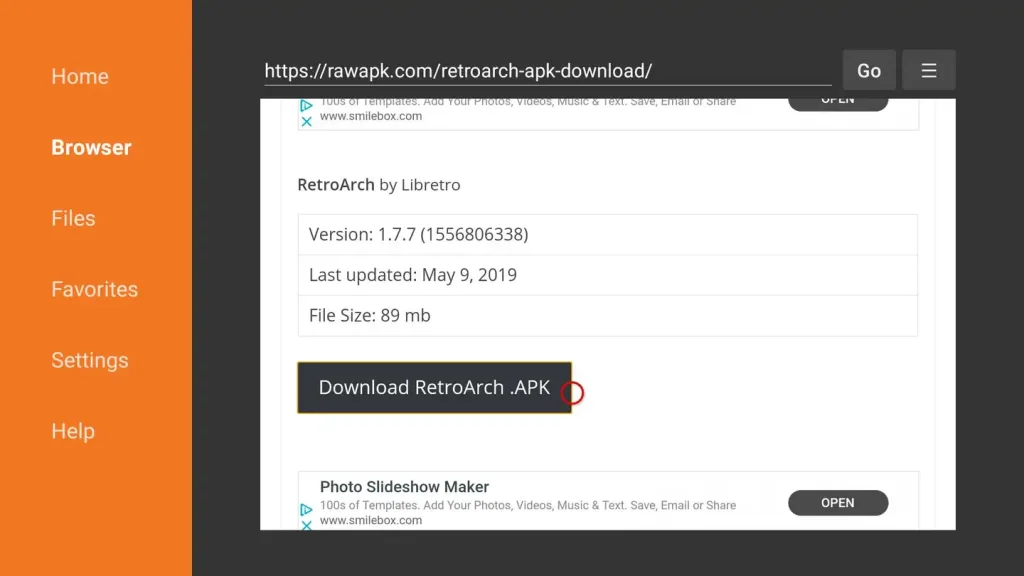
Once Downloader is installed, launch it. Access the Browser and enter the following URL:
https://buildbot.libretro.com/stable/1.9.0/android/RetroArch.apkWhen the website loads, click Download RetroArch.APK. Once it downloads, you’ll get a prompt to install the new app.
Connect a controller
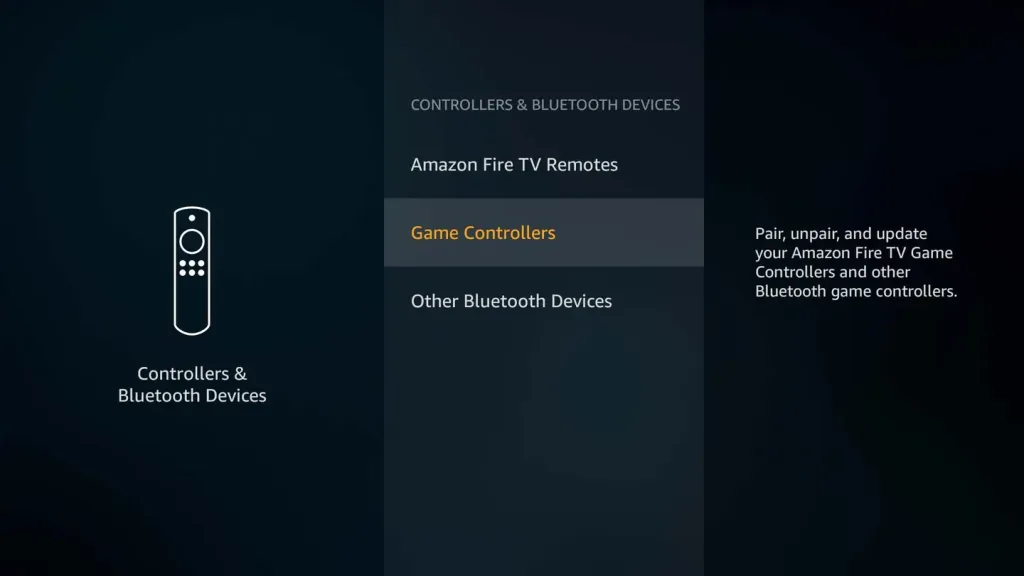
We’ll need a controller. Playing games with the Firestick remote is way too hard. I’m using this 8bitdo bluetooth controller. Most other bluetooth controllers will work.
To add a controller, open Settings then Controllers and Bluetooth Devices.
You’ll see an option to Add a new game controller. The pairing process will begin once you select it. Put your controller in pairing mode. Check with the manufacturer to find out exactly how to do this with your controller.
When the Fire Stick detects your controller, select it from the list using the remote. You’ll get a pop up in the corner confirming that it’s connected.
Now you can use your controller to navigate menus.
First-time Retroarch setup
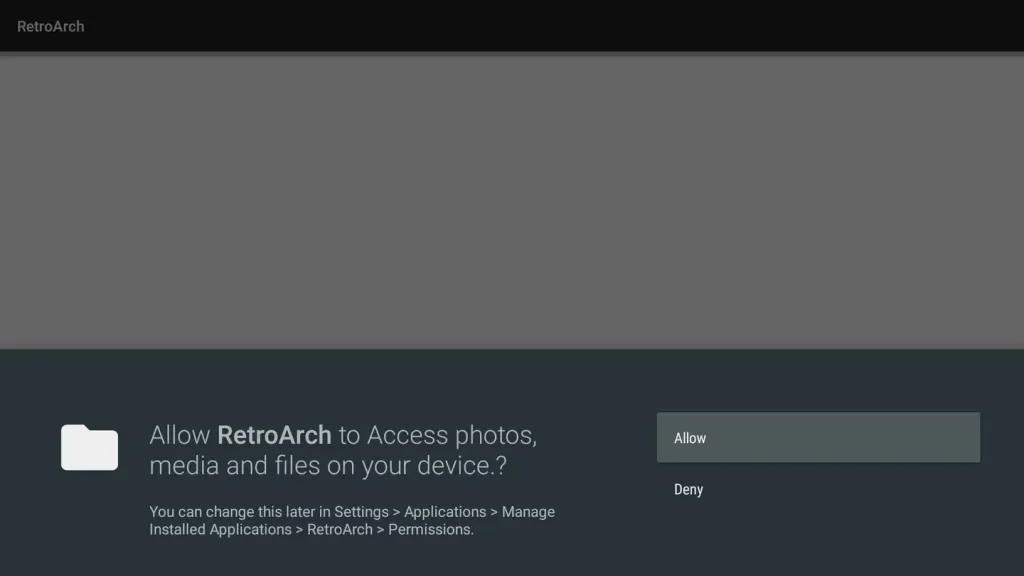
Now that we’ve got our hardware in order, let’s load up RetroArch. Select it from your list of apps on the home screen.
When you first launch RetroArch, it will prompt you for media permissions. Give RetroArch the access it’s requesting.
How to add cores (or emulators)
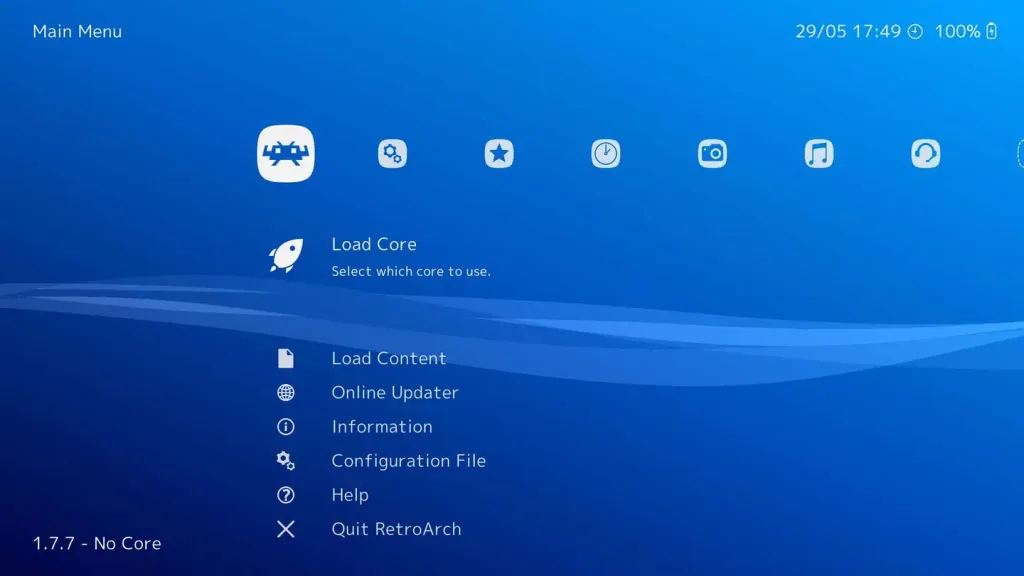
On the main RetroArch home screen, go to Load Core. You can pick any of the cores from the list.
Not sure which is best? Experiment yourself or check online for suggestions from the community.
You’ll notice there are often multiple cores for the same system. This is because each emulator accomplishes emulation through different means. This makes some better than others, depending on what you want to play.
Install the ES File Explorer File Manager app
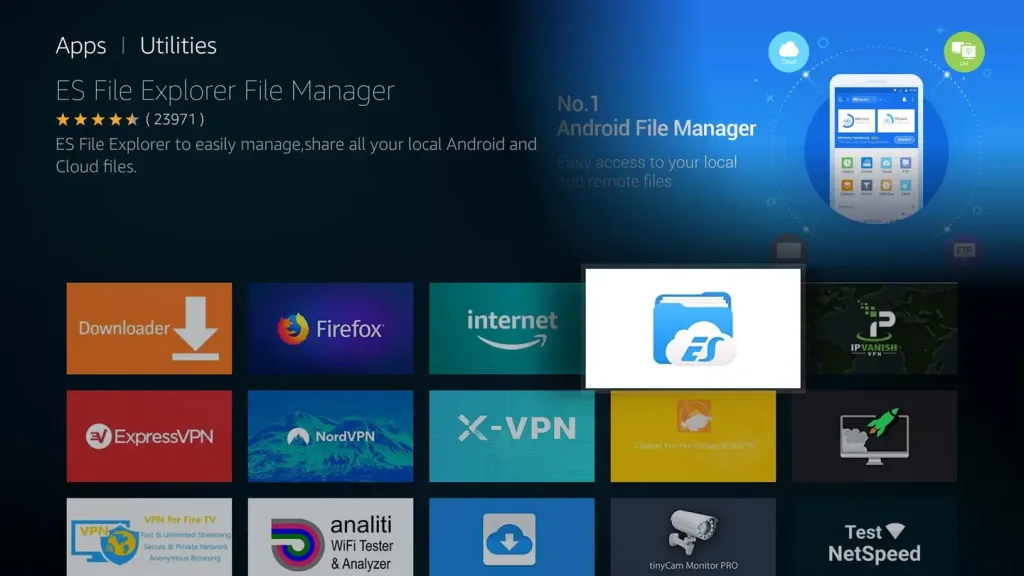
Now we need something to play. To put ROMs on the Firestick, I highly recommend ES File Explorer File Manager. It gives us tools we can use to transfer games from our computer to the Firestick over Wifi.
You can find it on the Amazon AppStore under Utilities.
Connect to the Firestick via FTP
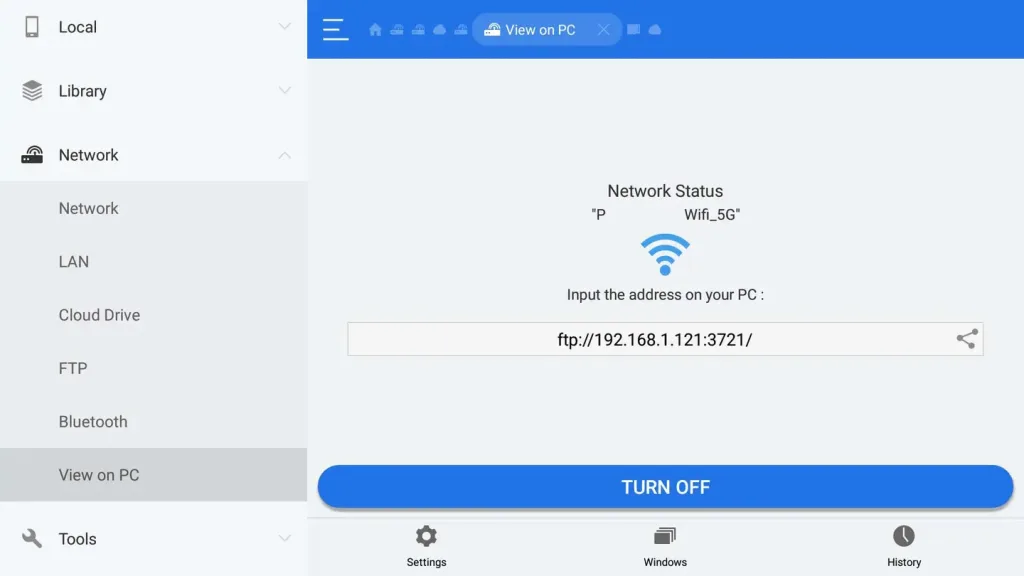
Open ES File Explorer and select Network on the left navigation menu. Choose View on PC. Turn on the feature.
This screen gives us an FTP address we can use to access the Firestick.
Connect to the Firestick using your favorite FTP program. For Windows, I recommend WinSCP. For Mac, I recommend FileZilla.
There is no username or password to log in with — leave both blank and connect.
Add ROMS to the Firestick
Here I have the Fire Stick open in WinSCP. Open the RetroArch folder and create a new one inside called roms. Drag and drop ROM files into the new roms folder. You can create subfolders for each emulator/core.
If you’re not sure where to get ROMs, check out our guide on where to find free and legal ROMs.
Where to Find and Download RetroPie ROMs (Free and Legally)
Let’s find something to play!
How to load ROMs in RetroArch
Once you’ve copied your games over, it’s time to launch them! From the main RetroArch home screen, choose Load content. This is right under the option to load a core.
From this screen, navigate to the folder you created to house your ROMs. Select the game you want to play and let your friends know you’re too busy gaming like it’s 1999.
Next: Install Kodi on your Firestick
Kodi is an open source media center. It runs on many different platforms, including the Fire TV Stick. Kodi can be used to stream personal media files from your PC. In our case, we can use it to make a nice interface for loading ROMs.
If you don’t have it yet, visit our guide on how to install Kodi on the Firestick.