
Connect Supernote A6x And A5x With Amazon Kindle
1
Navigate to Supernote settings
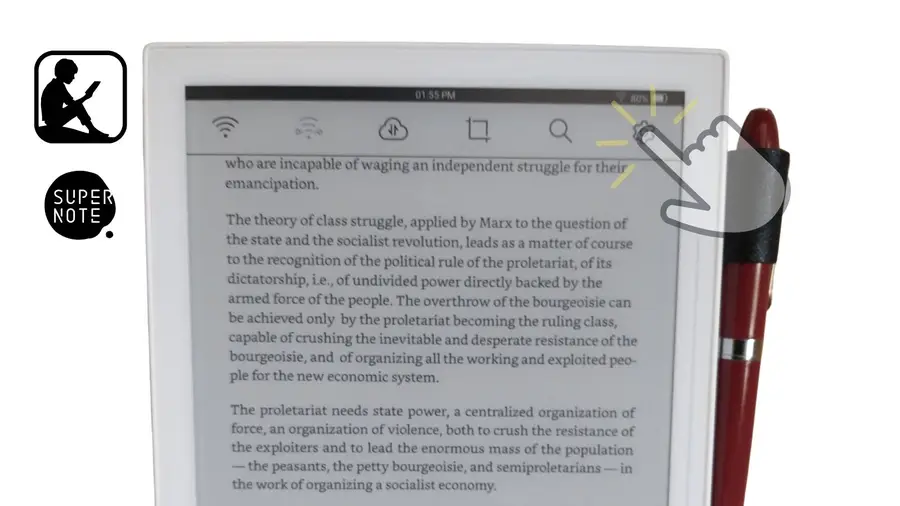
You’ll first need to head to your Supernote settings. This page can be accessed either by swiping down from the top of your Supernote screen or else by swiping down on the physical control bar and then selecting the word “Supernote” at the top.
- Once you are in the Supernote’s settings, click on “Apps.”
- In the Apps view you’ll be able to see a number of options, including the Supernote App Store. Tap on the Supernote App Store.
- You’ll see “Kindle” as an option, so just tap “Download!”
- Supernote provides you with a percentage meter for the download and will then begin installing Kindle.
- Once Kindle is installed, just click “Open” and you’ll be brought to your Kindle introduction page! Now you just need to sign in to your Amazon account.
2
Sign in to Amazon Kindle on your Supernote
Now that Kindle is downloaded and installed on your Supernote, you just need to complete the process of signing in. Make sure you have another device nearby because Amazon will need to send you a security confirmation for your log-in.
- Tap “More” from the bottom menu.
- Tap “Sign in with Amazon” which is the topmost item on the following menu.
- This will bring up the Amazon sign-in menu. Just enter your Amazon login information to continue.
- Amazon will send you a confirmation sign-in approval. Use your other device to confirm.
- And voila! That’s it. You’re now signed into Amazon Kindle from your Supernote.
Happy reading!