
Sync Your Obsidian Vault For Free
1
SyncThing
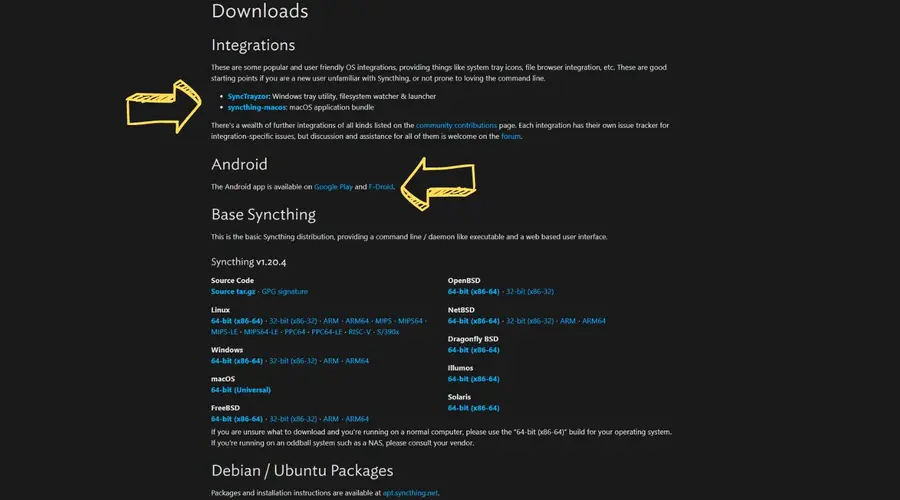
You need to navigate to the official SyncThing GitHub to download SyncThing.Since I use Windows, I’ll show you how to install the official windows app “SyncTrayzor”, but SyncThing-MacOS will feature much the same steps.
2
Download SyncTrayzor
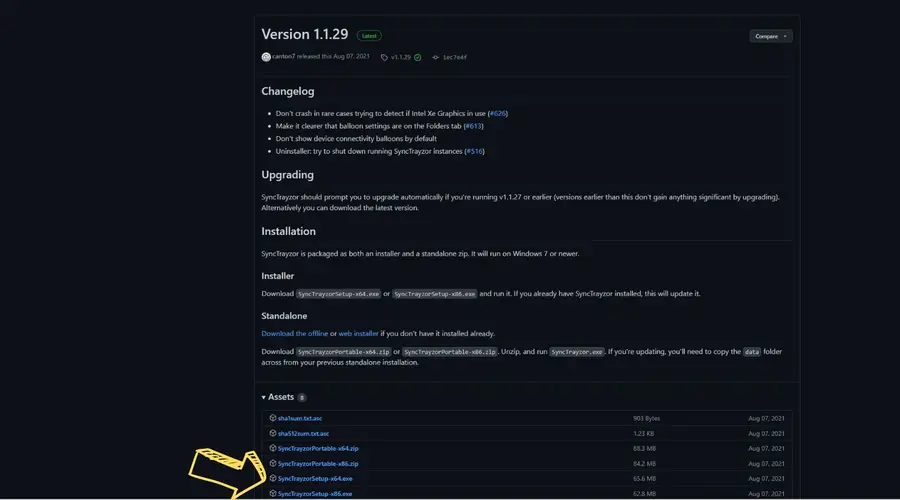
3
Run the SyncTrayzor .exe file
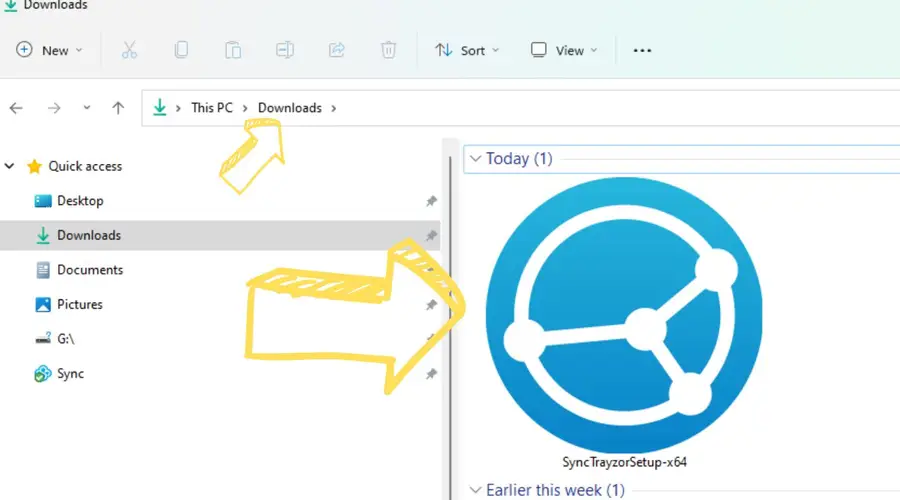
4
SyncTrayzor control panel
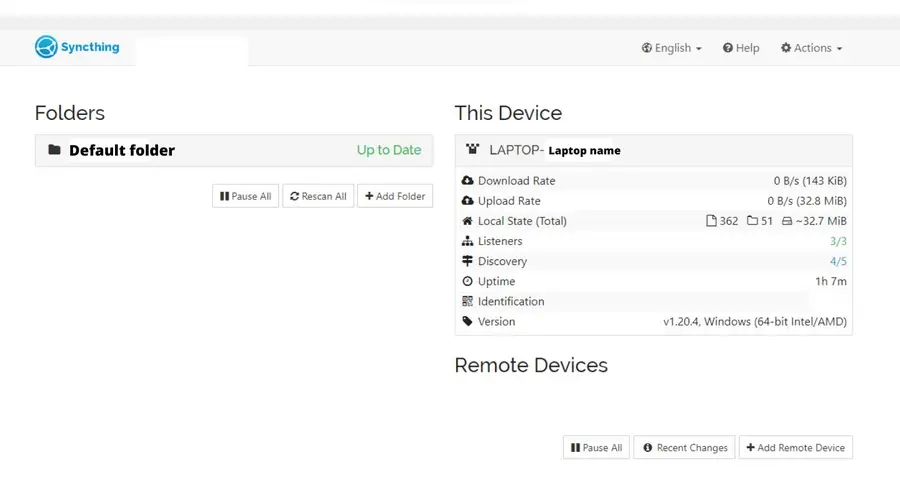
5
Check the SyncThing settings
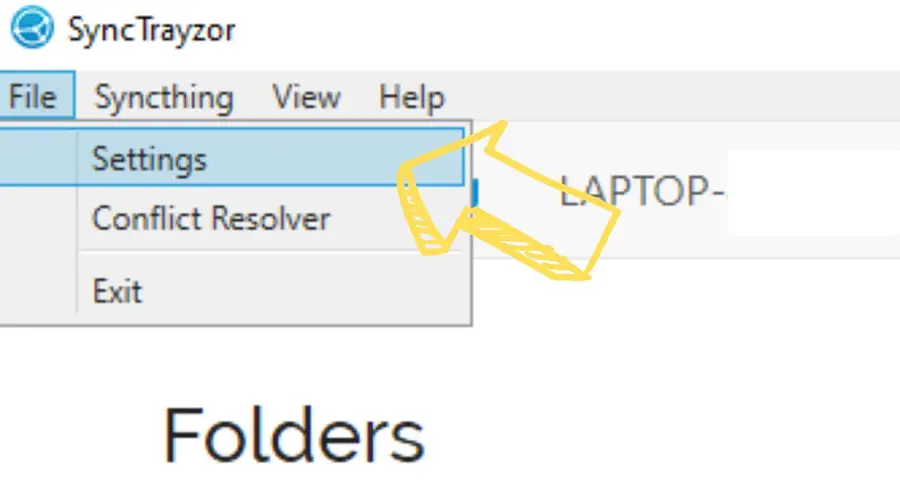
- First go to “File”, then click “Settings”.
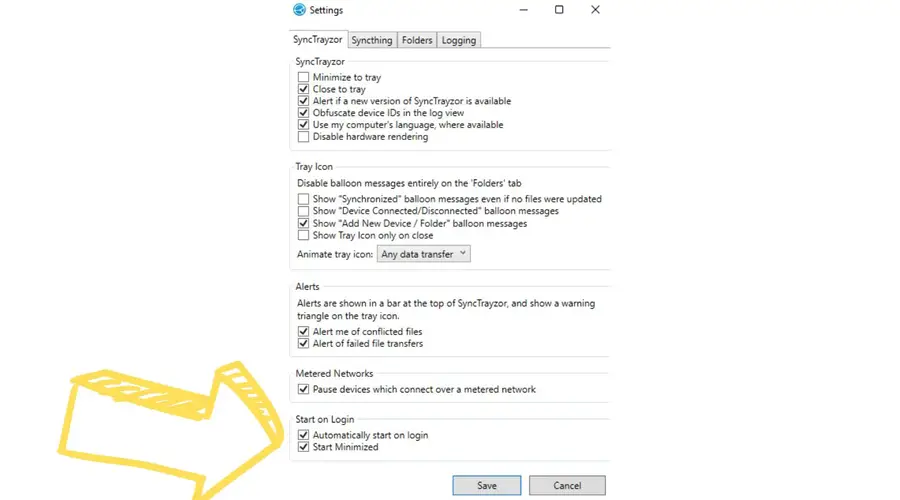
- On the SyncTrayzor tab, at the bottom, you’ll find two setting checkboxes:
- “Automatically start on login”, and “Start minimized”.
- Make sure both are checked.
6
Download SyncThing onto your phone
- The GoogleStore application can be found here.
- An independently-made mobile app for the iOS version can be found here.
7
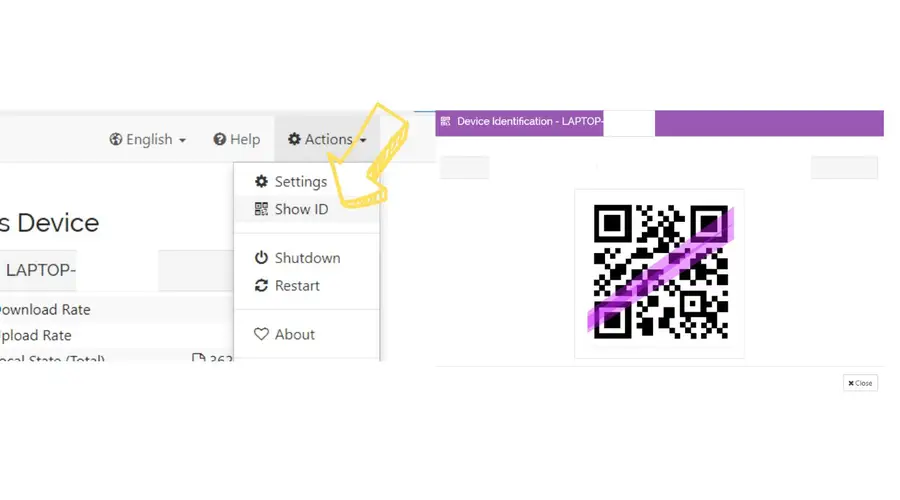
Prepare to add a new device to SyncTrayzor
8
Add your device
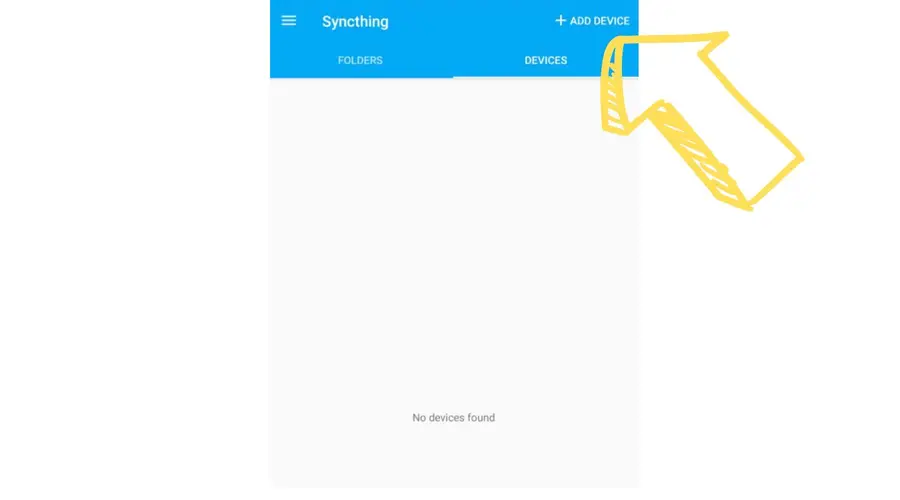
Now, simply scan the QR code from the SyncTrayzor app on your PC
9
Sync your Obsidian vault
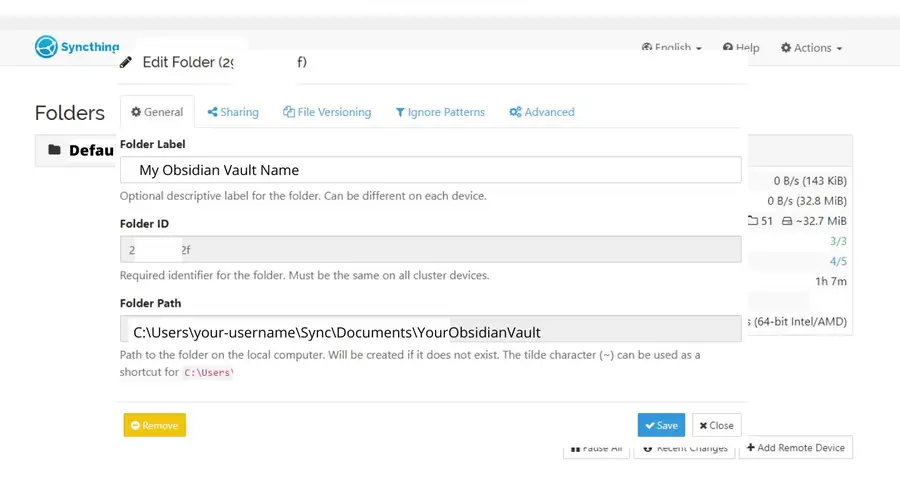
- On your computer, open the folder location of your obsidian vault.
- Right-click on the folder. Select “copy as path”. If you’re on Windows 10, you may need to first click “Show more options” to see the full context menu.
- Return to the SyncTrazor app and click on “Add folder”.
- Paste the folder path and remove the quotation marks (“…”) from the ends of the folder path link.
- Add a unique identifier to the “Label” section, such as “Obsidian”.
10
Enable file versioning and set up on mobile
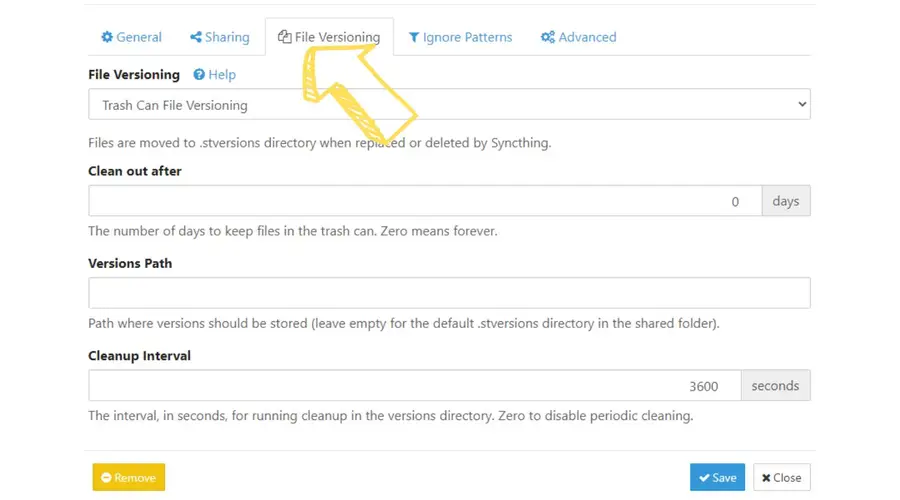
- Click on the “Sharing” tab in the SyncTrayzor window for your folder.
- Under “File Versioning” click the “Trash Can File Versioning” checkbox.
- Click “Save”.
- On your mobile device, a new notification should appear letting you know that a folder wants to be shared.
- Tap on this notification and choose the folder on your phone that you want to use as your Obsidian Vault. Make sure “Watch for Changes” is selected.
- Tap “Create”.