
Uninstall Programs With Chocolatey
1
Uninstalling a program with Chocolatey using PowerShell
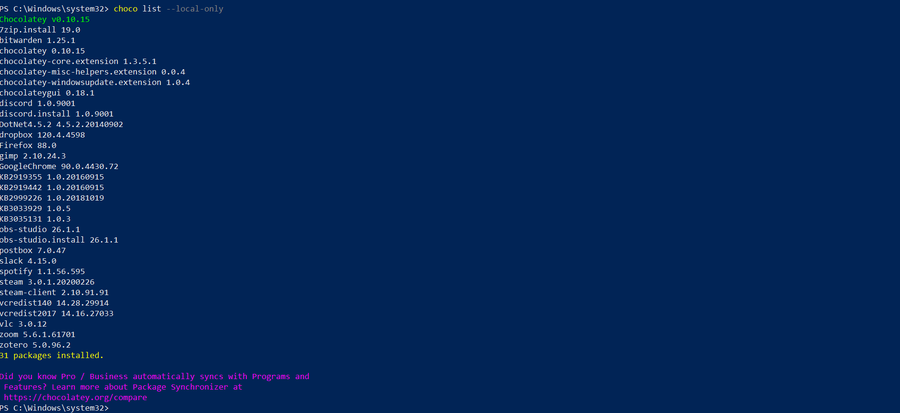
- Open PowerShell by searching for it in Windows search. Make sure to open it via Run as Administrator.
- The first PowerShell command we’ll be using today is:
choco uninstallwhich allows you to uninstall programs really quickly and easily. - For instance, you could use this to remove a single program:
choco uninstall googlechrome - Or you could use this to uninstall a selection of programs all at once:
choco uninstall googlechrome notepadplusplus 7zip - Or even uninstall everything managed by Chocolatey in one glorious shot with:
choco uninstall all - To find a list of all your Chocolatey-installed software, use the following command in PowerShell:
choco list --local-only - Finally, to ensure that your uninstallation process slides through without hassle, append your command with
-y(for “yes”), which will automatically select the affirmative option from the software’s uninstallation prompts should any exist. See the example below. choco uninstall googlechrome -y
2
Uninstalling a program through the Chocolatey GUI
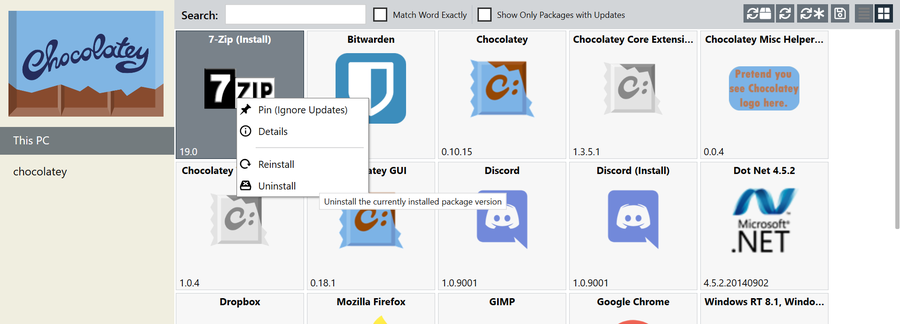
If you are using the Chocolatey graphical user interface, you can also use it to uninstall any Chocolatey-managed programs you desire. The process here is as simple as right-clicking on the item in question and choosing “Uninstall” from the drop-down menu.
The GUI isn’t as handy for uninstalling a large selection of software in one go, however, so I’d stick to PowerShell for big operations.