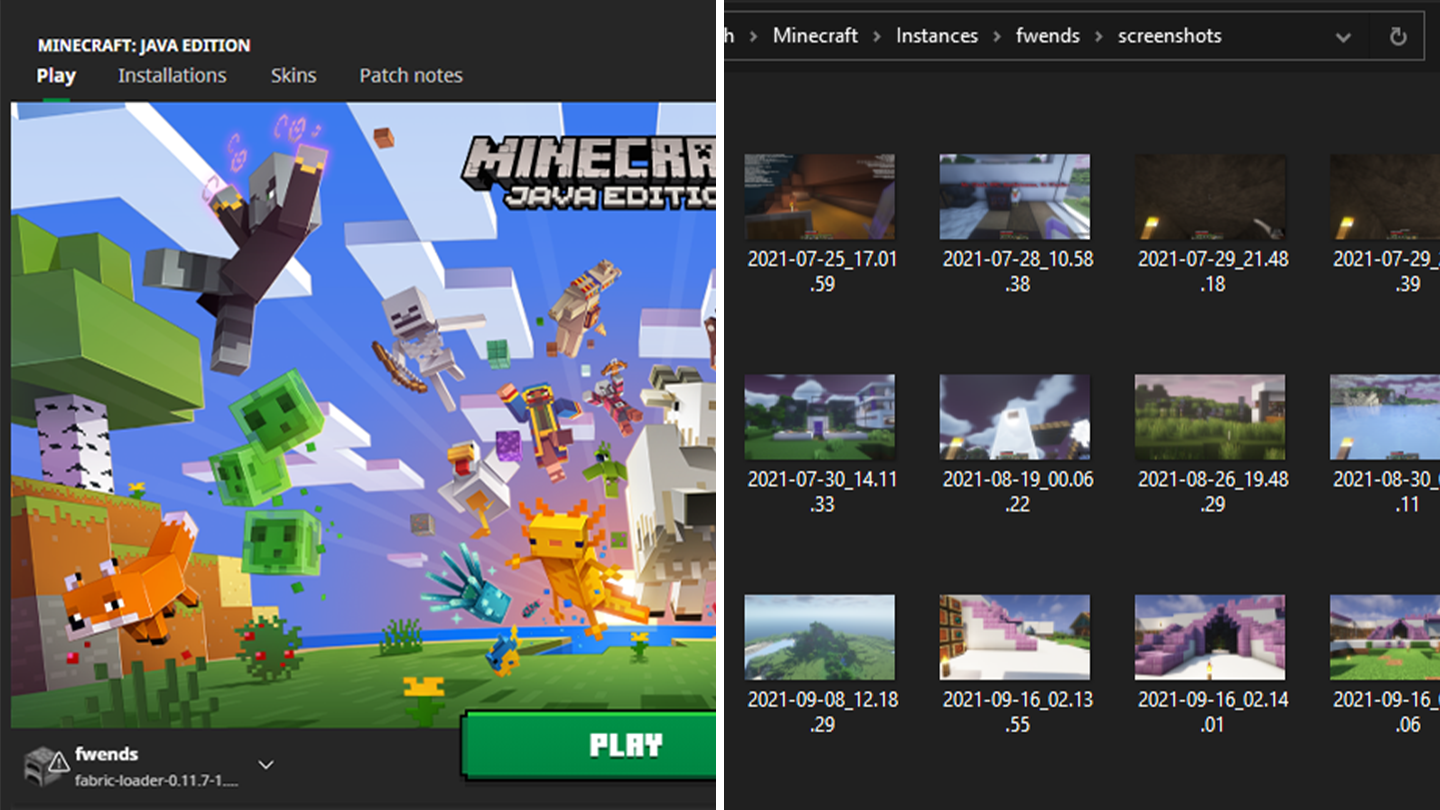
Find Screenshots Minecraft Launcher
1
Open Minecraft Launcher
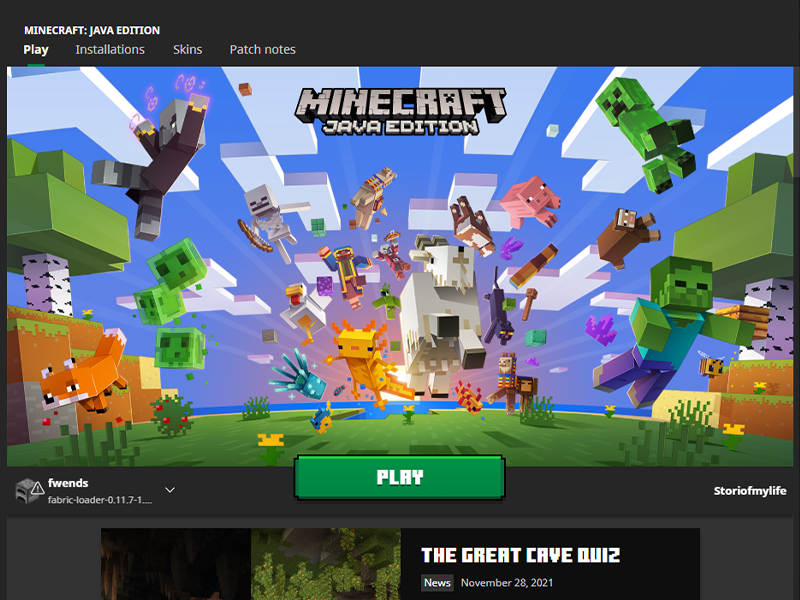
If you launch Minecraft directly through the launcher, open it up and move on to the next step. If you play Minecraft through CurseForge, follow along with our other guide!
2
Navigate to Installations Tab
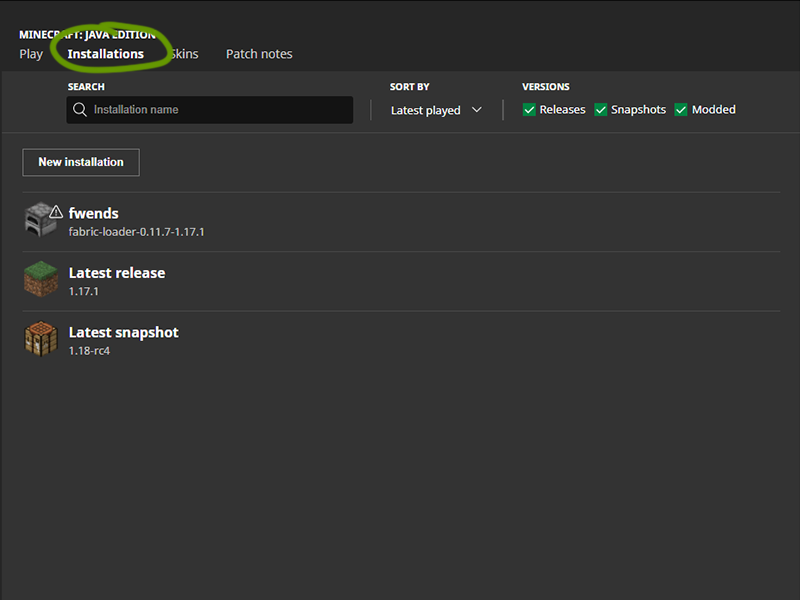
At the top of the window, under the game version, click the Installations tab.
3
Open the Save Folder
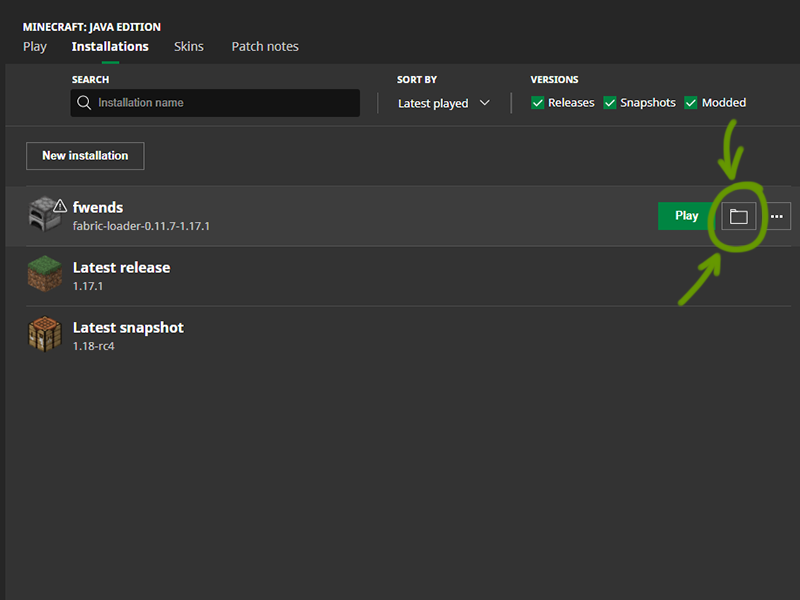
Hover your mouse over the game version you want to find and click the folder icon to the right of the Play button. Move onto the next step when the new window opens.
4
Navigate to the Screenshots Folder
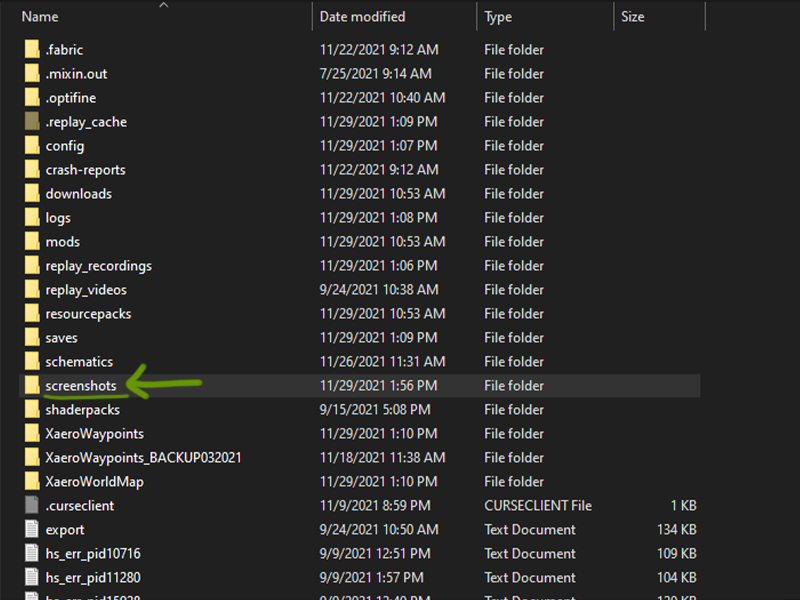
A window will open that shows all the files in the instance you played. Find the Screenshots folder and double click to open it. Within are all the screenshots you made in your worlds!